Normal view

There are new articles available, click to refresh the page.
Before yesterdayMain stream

Fun with UTIs, QuickLook and Spotlight

By: hoakley
23 May 2026 at 15:00

In case you haven’t got the message from the last few weeks looking at Spotlight and QuickLook, UTIs (Uniform Type Identifiers) are important, but not always as critical as they could be. To understand how macOS copes with misleading UTIs, I have a little demonstration you can try in the privacy of your own Mac.

All you need for this is an image with some Exif metadata. Those taken by an iPhone are particularly suitable, as they usually contain rich Exif information about which model took that image, focal length, aperture, exposure time and more. In my case, the image is in HEIC format. If you have my apps UTIutility and SpotTest, you can also explore UTIs more thoroughly, and inspect the metadata from images that gets indexed by Spotlight, but those are optional extras.

A file with the extension HEIC or heic is assumed to have the UTI public.heic, which conforms to public.heif-standard, and that in turn conforms to public.image, the parent of most image formats in macOS. The Help book for UTIutility shows these in a dense diagram.

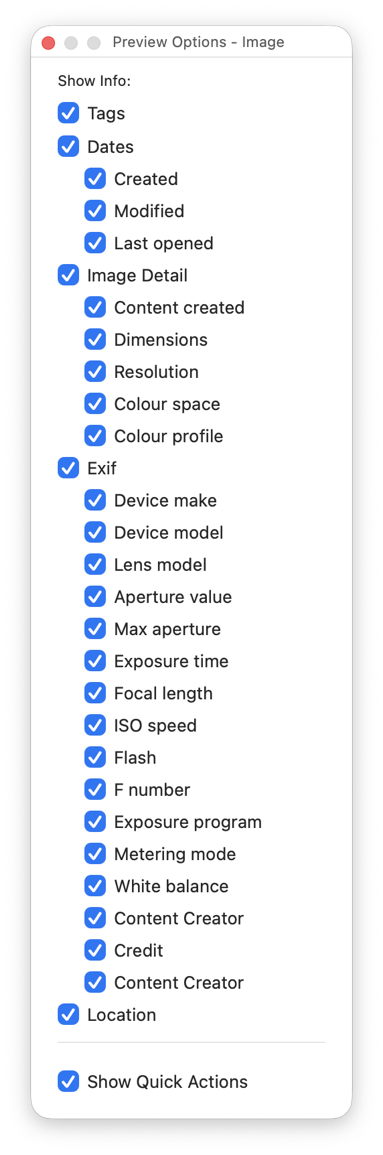
Select that image in the Finder’s Column view to inspect its public metadata. While the image is selected, open Show Preview Options in the View menu and enable all the metadata listed there to be shown in previews.
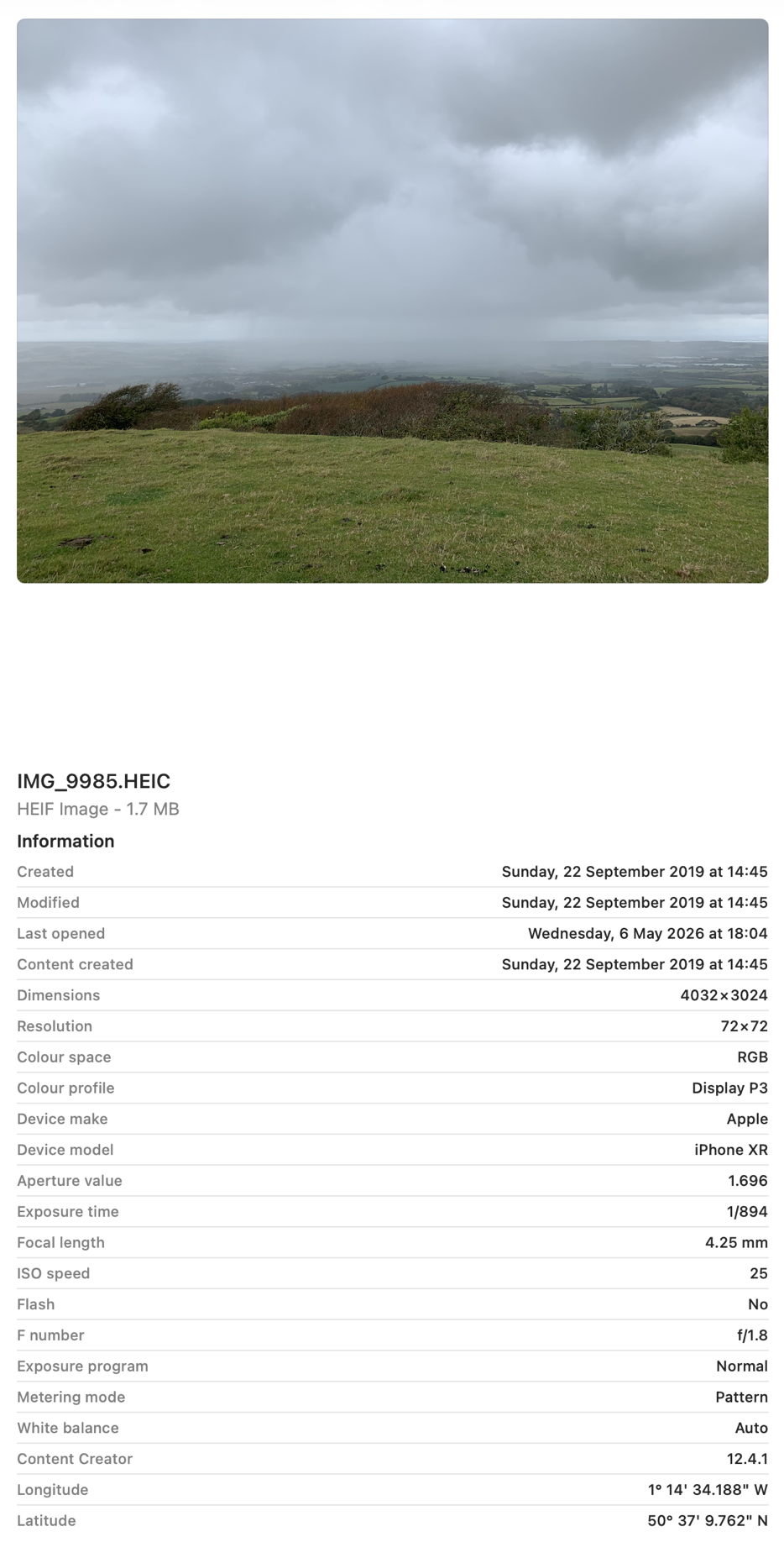
You should then have a good preview pane with lots of metadata below it.
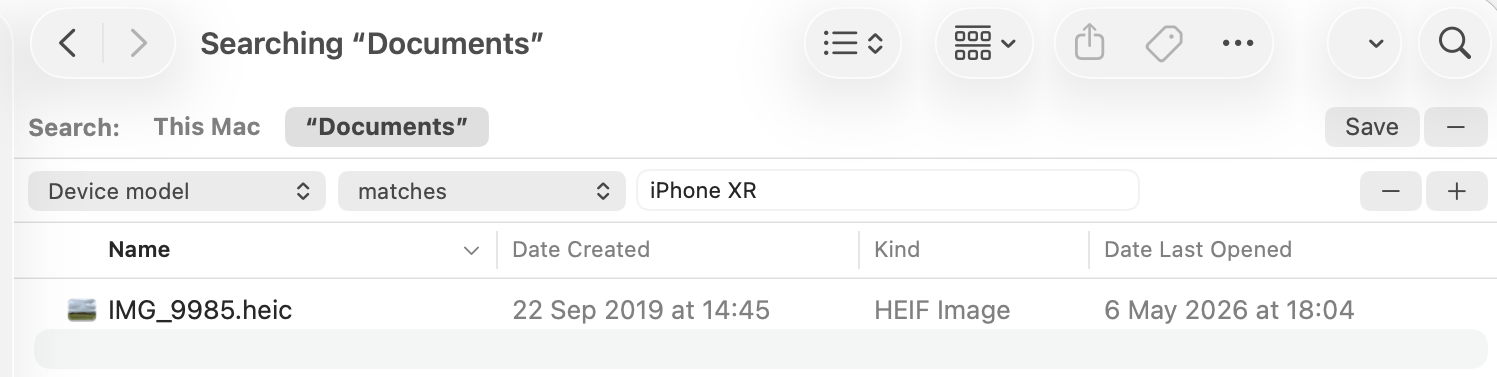
Next open a new Finder window and set it to Find. Using the search criterion popup menu, enable the Device model attribute, or another your image has metadata for, and search for that attribute, here iPhone XR, and you should see your image among the hits.
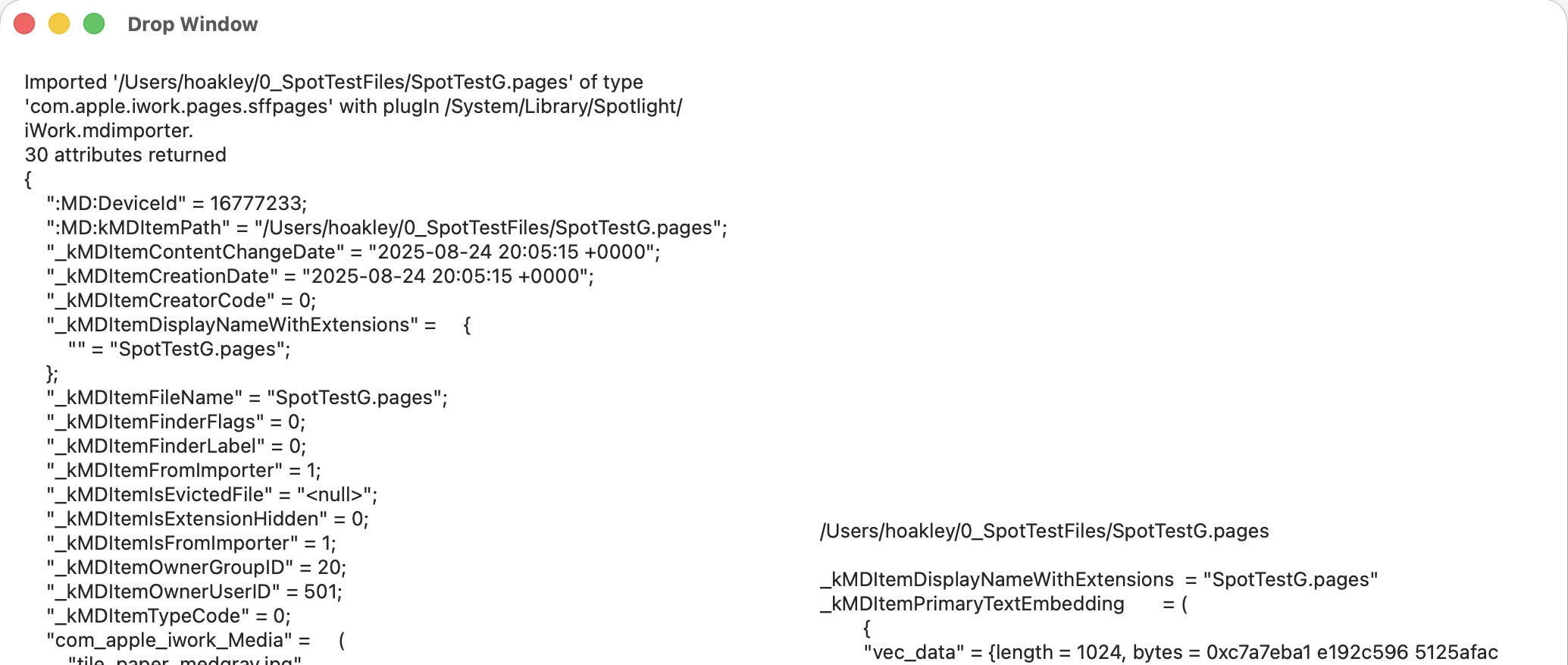
If you have SpotTest to hand, drop your image on its Drop Window. Being an image, it will crash mdimport, so the information you’ll see will be the metadata fields from Spotlight’s indexes, which should include the Device model as kMDItemAcquisitionModel.

So far, everything has worked as expected, but we’re now going to throw a spanner in the works by changing the extension on that image from HEIC to jpg, which changes the image’s UTI to public.jpeg, although that still conforms to public.image.

Its basic thumbnail icon now changes to a generic JPEG icon, so we’ve managed to confuse the basic thumbnailing scheme in QuickLook. But it’s still shown in the preview pane correctly, with all its metadata intact.

This is because that image has its larger thumbnails and previews generated by the qlgenerator for public.image, and that goes out of its way to parse the file data correctly, and recognise this is really a HEIC not a JPEG. If you’ve left the Finder Find window open, you’ll see that continues to find the image as if nothing had happened, as Spotlight also imports metadata using a common mdimporter for public.image, rather than relying on the more specific UTIs of public.jpeg or public.heic.

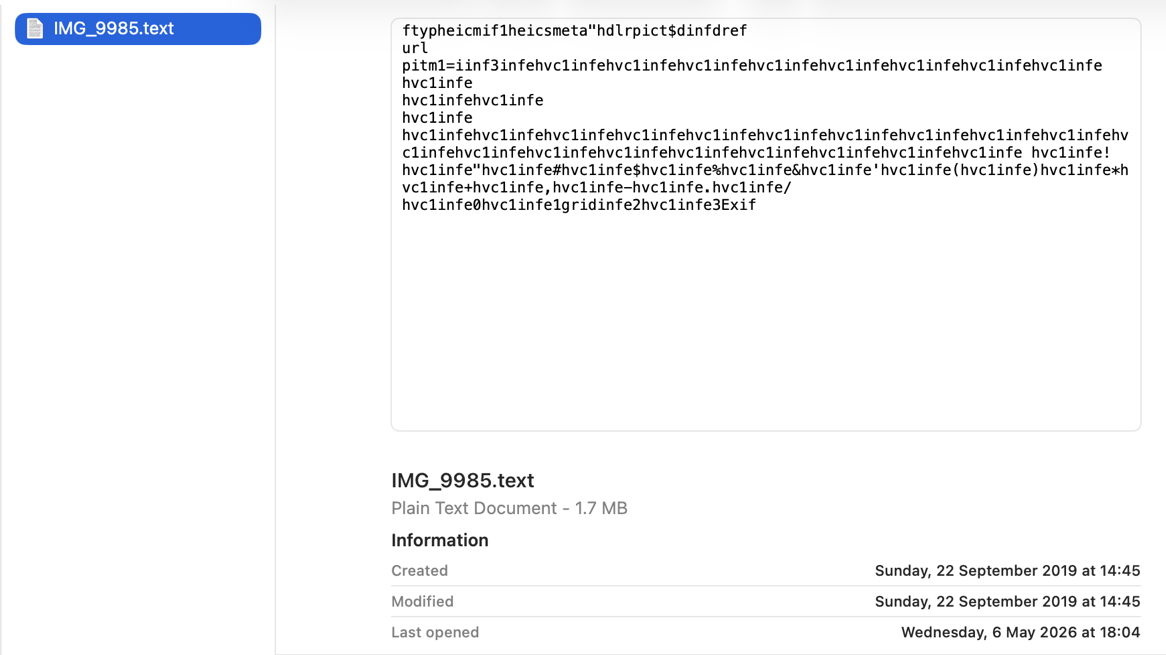
Finally, change the file’s extension to text, and you’ll see a preview of its text content, and it vanishes from the Find window too. That’s because text files are handled by their UTI of public.text, which includes public.rtf and others. Those don’t check the file data to ensure they’re not images, so the file is now being handled by the wrong qlgenerator and mdimporter, and won’t make any sense. As public.text formats don’t support Exif data, that isn’t extracted either, as you can see in SpotTest.
Change the extension back to heic, and you’ll see how quickly the right qlgenerator and mdimporter correct its thumbnails, previews, and search discovery, thanks to UTIs.

Chinese whispers in PDF metadata

By: hoakley
15 May 2026 at 14:30

Chinese whispers is an old children’s game where everyone sits in a circle, and one child whispers into the ear of the next on their right a sentence like Send reinforcements, we’re going to advance. That child then whispers the message they heard to the child on their right, until it reaches the one who started it, who says out loud what they heard, classically Send three-and-fourpence, we’re going to a dance, as a demonstration of how messages can so easily become corrupted. What this has to do with China remains one of childhood’s mysteries. I should also explain that three-and-fourpence was idiomatic British English in the days before our currency was ‘decimalised’, and meant three shillings and four (old) pence, about 17 (new) pence, sufficient at one time to enjoy a good night out.

In this article I’m going to do much the same with metadata for a PDF document, tracing what gets indexed by Spotlight, so becoming discoverable by search, and what is displayed in the Finder. This relies on several of my utilities, most of which are available from this page.

Source PDF

I prepared a completely unrelated PDF using my favourite PDF editor, PDF Expert, by adding metadata to be saved in the file’s data. As you might expect, there are several ways that could be stored in the PDF format, including XMP metadata, but in this case for simplicity they were added in the document information dictionary.

I inspected that in a source view in Podofyllin, which found the following fields:
/Author (Author name in pdf)
/Creator (Pages)
/Keywords (keyword1 pdf)
/Subject (Subject in pdf)
/Title (0PDFtest1accessdefault)

When rendered in macOS, those are ‘flattened’ by its Quartz PDF engine, to
/Author (Author name in pdf)
/Creator (Pages)
/Keywords (keyword1 pdf)
/AAPL:Keywords [(keyword1 pdf)]
/Subject (Subject in pdf)
/Title (0PDFtest1accessdefault)

Note the copying of keywords into a new attribute AAPL:Keywords.

Extended attributes

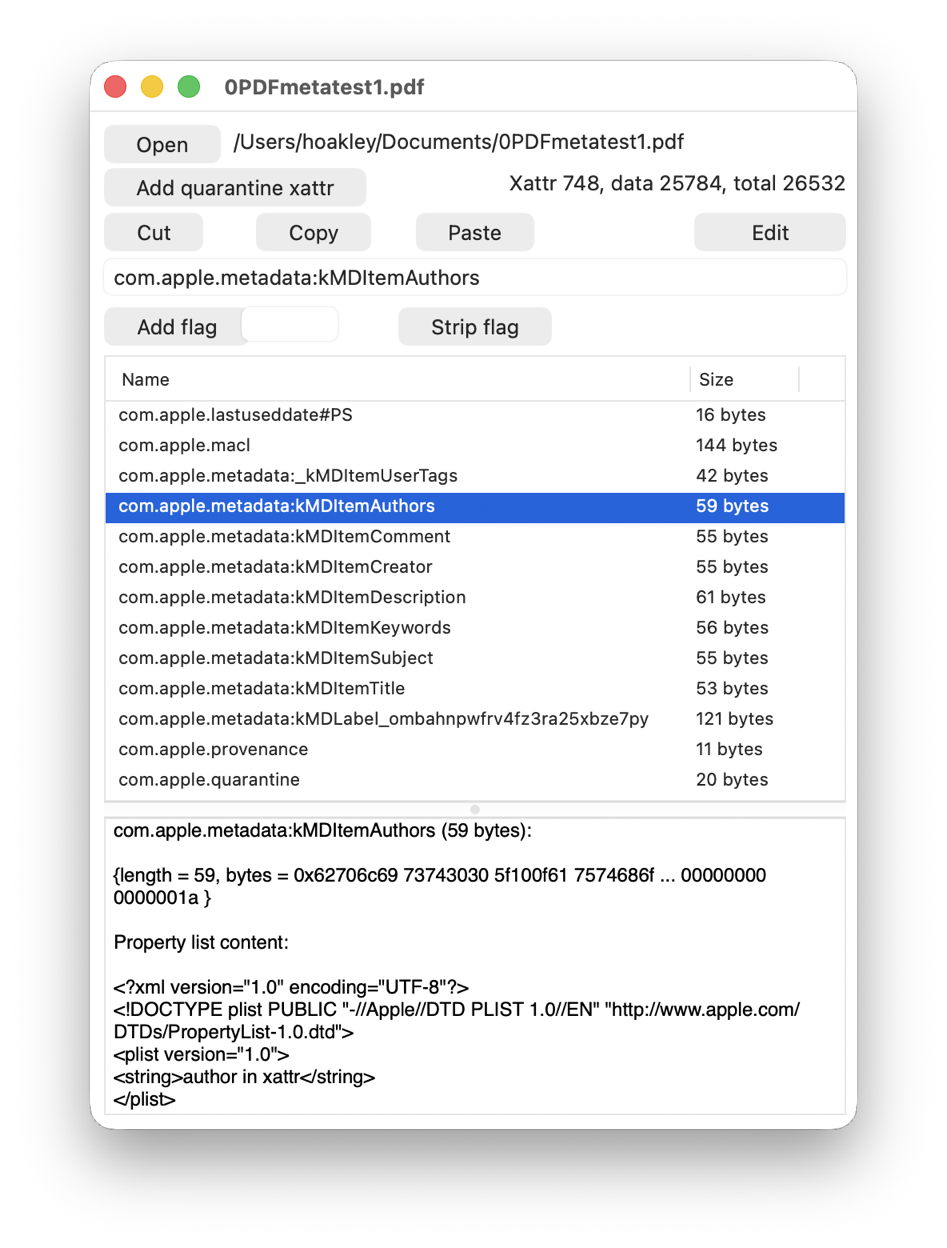
I then added seven extended attributes using Metamer, with names such as com.apple.metadata:kMDItemAuthors, as shown below in xattred.

Spotlight import

I then inspected the file in SpotTest’s new Drop Window, which reported the following attributes found by mdimport:
":EA:kMDItemAuthors" = "author in xattr";
":EA:kMDItemComment" = "xattr comment";
":EA:kMDItemCreator" = "xattr creator";
":EA:kMDItemDescription" = "xattr description";
":EA:kMDItemKeywords" = "keyword1,xattr";
":EA:kMDItemSubject" = "xattr subject";
":EA:kMDItemTitle" = "xattr title";

all from the extended attributes, while those derived from the PDF data were
kMDItemAuthors = (Pages);
kMDItemCreator = Pages;
kMDItemDescription = "Subject in pdf";
kMDItemKeywords = ("keyword1 pdf");
kMDItemTitle = 0PDFtest1accessdefault;

Those attributes have already changed, with PDF Subject becoming kMDItemDescription, Creator being duplicated into kMDItemAuthors, and the loss of PDF Author.

Spotlight indexes

Attributes reported by mdls changed again to
kMDItemAuthors = (Pages)
kMDItemComment = "xattr comment"
kMDItemCreator = "Pages"
kMDItemDescription = "Subject in pdf"
kMDItemKeywords = ("keyword1,xattr")
kMDItemSubject = "xattr subject"
kMDItemTitle = "0PDFtest1accessdefault"

This has lost the xattr attributes kMDItemAuthors, kMDItemCreator, kMDItemDescription and kMDItemTitle, and the PDF kMDItemKeywords. That list of 7 attributes should then be searchable using Spotlight.

The Finder

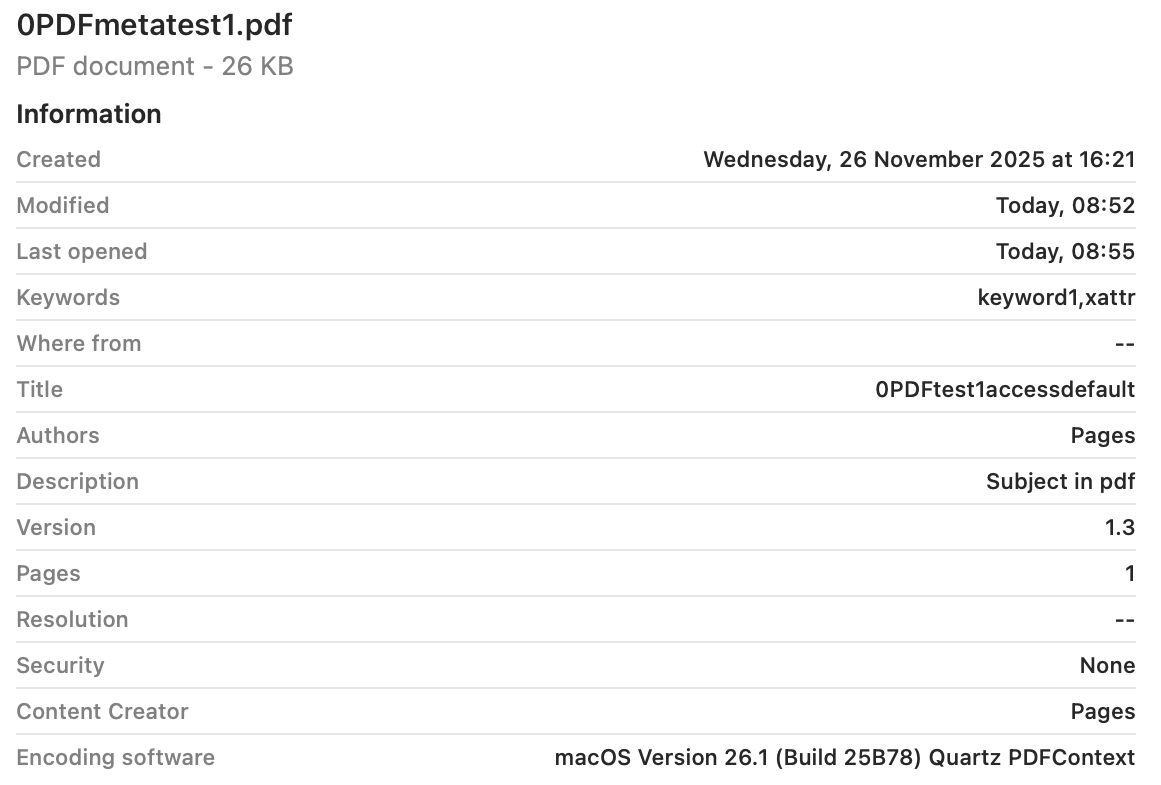
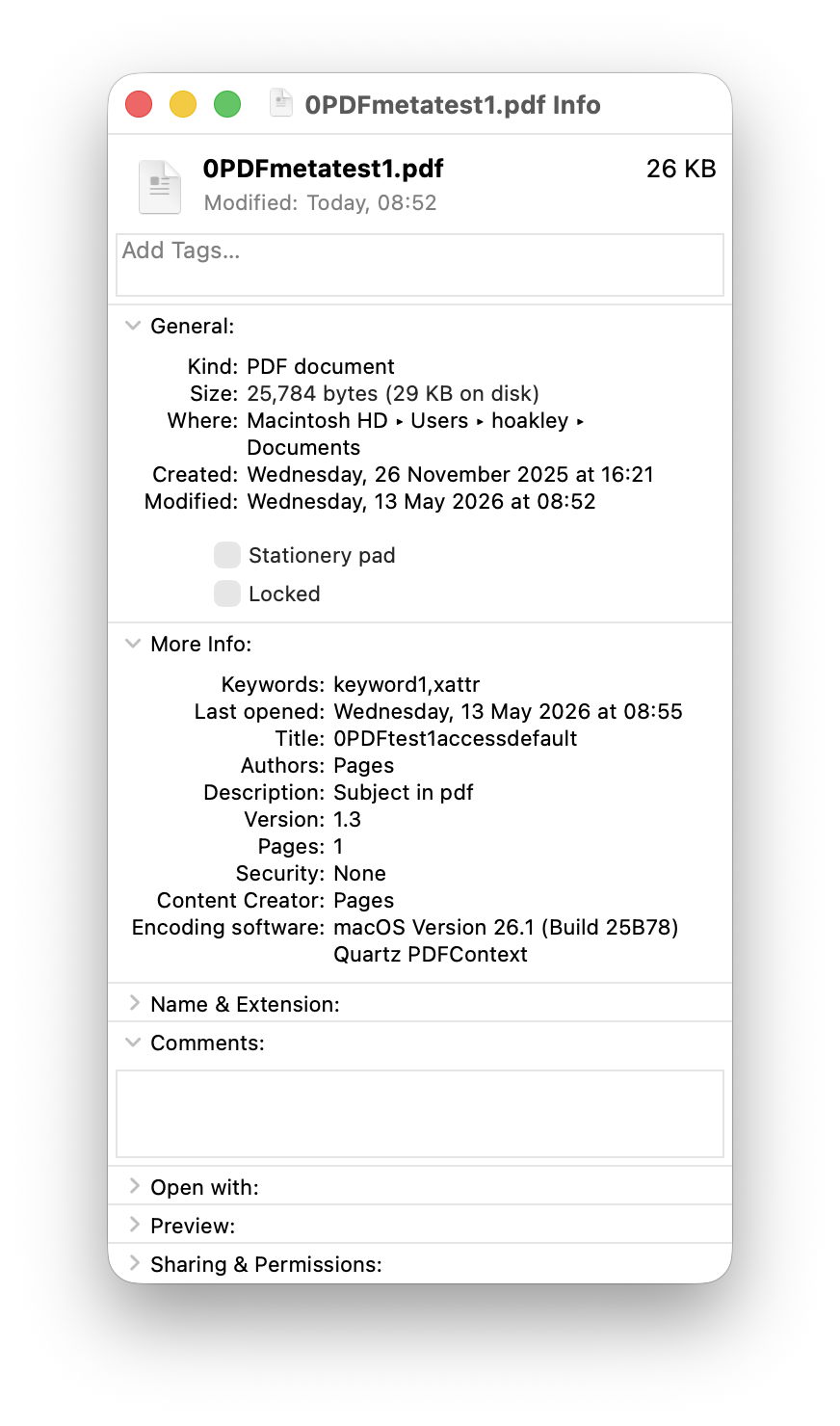
The final step was to discover which of those could be displayed in the Finder, either in its Get Info dialog, or in the Preview panel of a Finder window.

Only 5 of those attributes survived in the Finder, and were given as
Authors: Pages
Content Creator: Pages
Description: Subject in pdf
Keywords: keyword1,xattr
Title: 0PDFtest1accessdefault

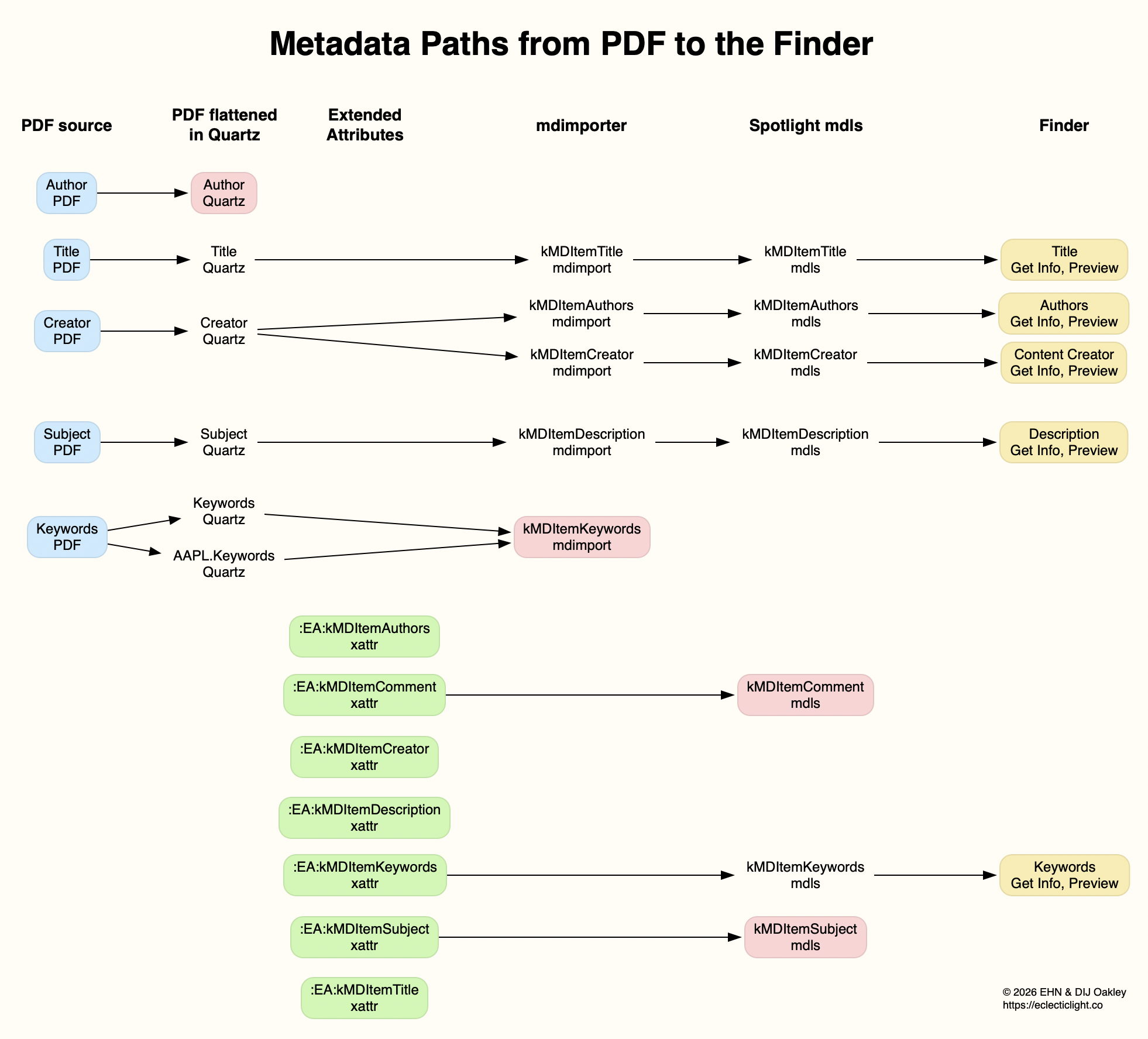
Of those, 4 are taken from the metadata in the PDF file, and only the Keywords were taken from its extended attribute. The attribute named as Authors contains a duplicate of what had originally been in the PDF Creator field, but neither of the PDF Author or xattr kMDItemAuthors fields. Those paths are traced in the diagram below.

Conclusions

Of the total of 12 distinct metadata attributes added in the PDF data and extended attributes, only 6 different items were indexed by Spotlight, and 4 were displayed in the Finder (allowing for the duplication of Authors and Content Creator).

Before relying on metadata for search and access in the Finder, it’s essential to verify that the attributes you intend using are successfully indexed and displayed. Choose the wrong attributes and you’ll never find anything.

SpotTest 1.2 can display Spotlight metadata directly

By: hoakley
14 May 2026 at 14:30

As promised, here is a new version of my free Spotlight test utility SpotTest, which will now display full information from two Spotlight command tools listing metadata for files.

To open its new Drop Window, either click on the new tool at the right end of the toolbar in its main window, or use the command in its Window menu. Then drag and drop files you want to inspect onto that window.

The app then runs two command tools on those files:
mdimport -t -d2 filename
to list all known metadata recognised by the mdimporter used, and
mdls filename
to list all indexed metadata.

That mdimport command currently crashes on most images, so won’t return any information about their metadata until Apple fixes the bug.

If you want to save the output in this Drop Window, select the file(s) output in its display, copy and paste it into a text editor or similar. You don’t have to keep the app main window open, and could use the Drop Window alone as a convenient way to inspect metadata.

As you’ll see, the length of mdimport output is significantly greater than that from mdls. Although there are matching entries, there’s no simple way to align those matches. Of all the possible layouts, I found this linked arrangement, where both outputs scroll alongside one another, the most effective for comparing their contents. It also allows you to view output for several files in the single window.

SpotTest version 1.2 is now available from here: spottest12
from Downloads above, and from its Product Page.

Tomorrow I’ll be using it to trace the paths of metadata from a source file to their display in the Finder.

❌
❌