
Normal view

There are new articles available, click to refresh the page.
Before yesterdayMain stream

What is a Background Security Improvement, and how does it work?

By: hoakley
19 March 2026 at 15:30

Since the introduction of the Signed System Volume in Big Sur, the great majority of macOS has been strongly protected. So strongly that applying the smallest security patch has required the full might of a macOS update. There are times when something more lightweight enables Apple to promulgate urgent patches swiftly and efficiently, and that’s what a Background Security Improvement or BSI does.

This was set up when macOS Monterey introduced cryptexes to contain Safari, its WebKit supporting library, and the large dyld caches for general support in Frameworks. Cryptexes are cryptographically sealed disk images that aren’t mounted like other volumes, but are grafted into arbitrary locations in the file system. In Ventura they were used for Rapid Security Responses (RSR), in many ways indistinguishable from BSIs.

This week’s first BSI for macOS 26.3.1 is a good example: it fixes one serious vulnerability in WebKit. Rather than building that into a full update to 26.3.2, because it only requires changes in the cryptex containing Safari and WebKit, this BSI swaps out the existing App cryptex and replaces it with a patched one. For those who don’t want to install BSIs, those same vulnerabilities should be fixed in the next set of security updates to macOS.

Controls
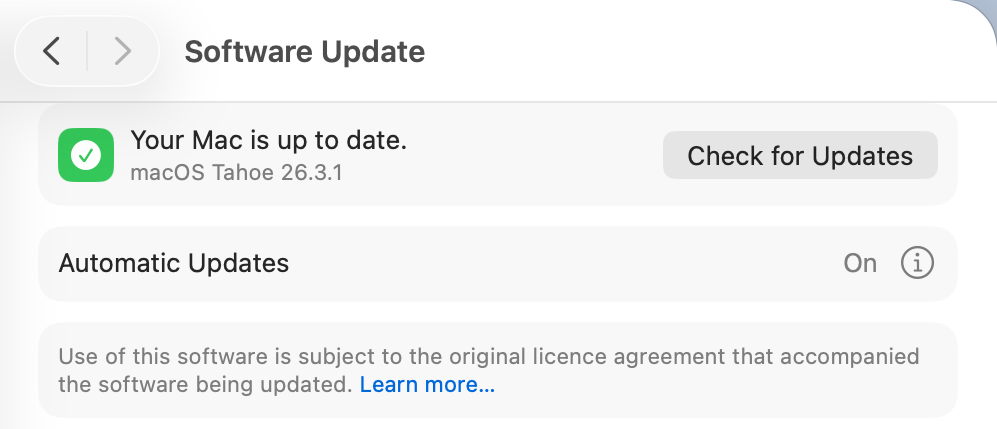
Look in Software Update settings, and you’ll see no mention of any BSI, and that will claim your Mac is up to date, even though it’s not.
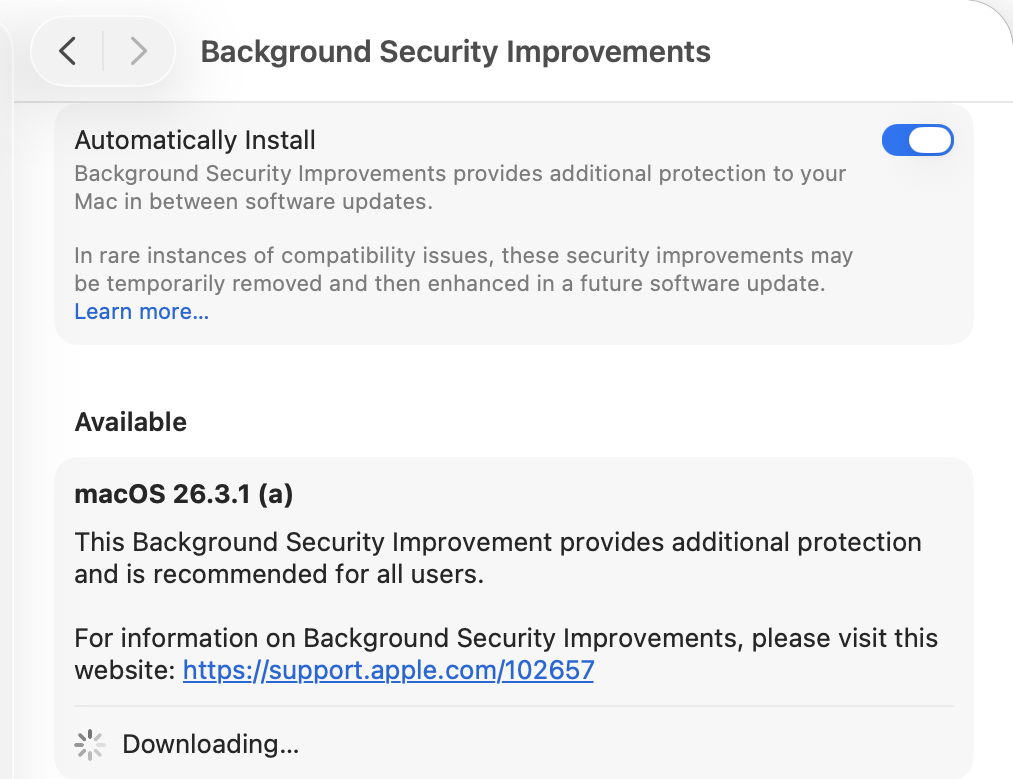
BSIs are controlled in their section listed close to the foot of Privacy & Security settings. If you want your Mac to be offered BSIs when they’re available, you must enable Automatically Install first. Despite those words, BSIs don’t appear to install in the least bit automatically, and you should be offered those available for the installed version of macOS. When you’ve chosen to download and install one and authenticated, you’ll see a progress spinner rather than a bar.

As soon as downloading and preparation are complete, you should be given a few seconds before your Mac restarts to complete the installation. This is all very brief, but once you’ve authenticated to start the process, it will run through to completion automatically.
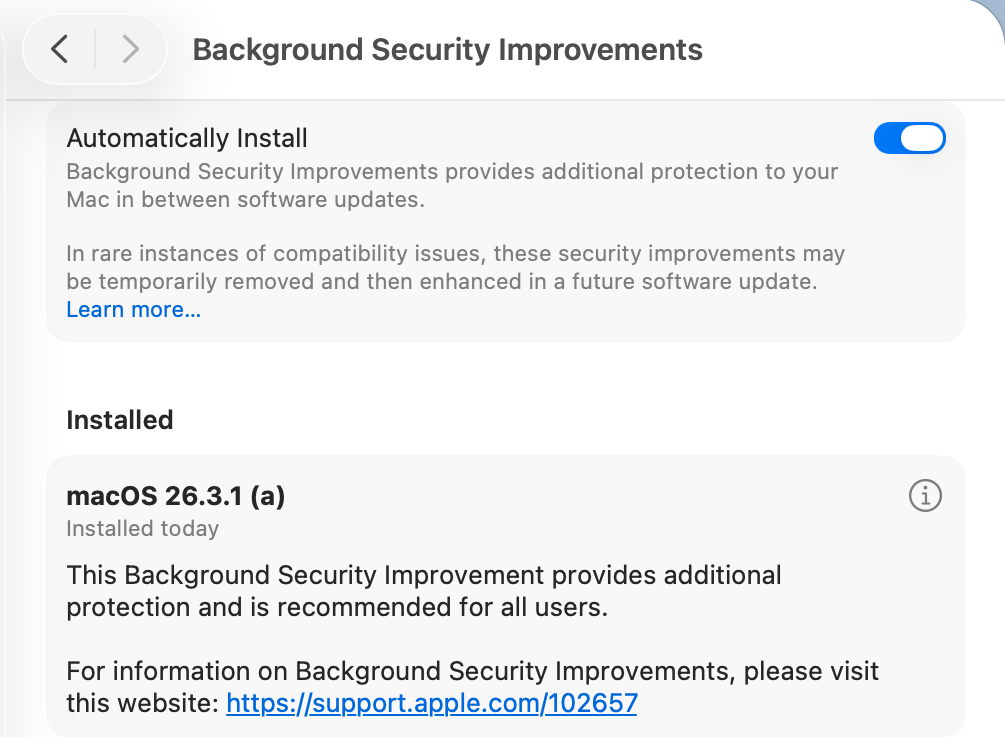
Once your Mac has restarted, you always retain the option to remove any BSI and return to an unpatched cryptex. To see that, click on the ⓘ Info button on the right.
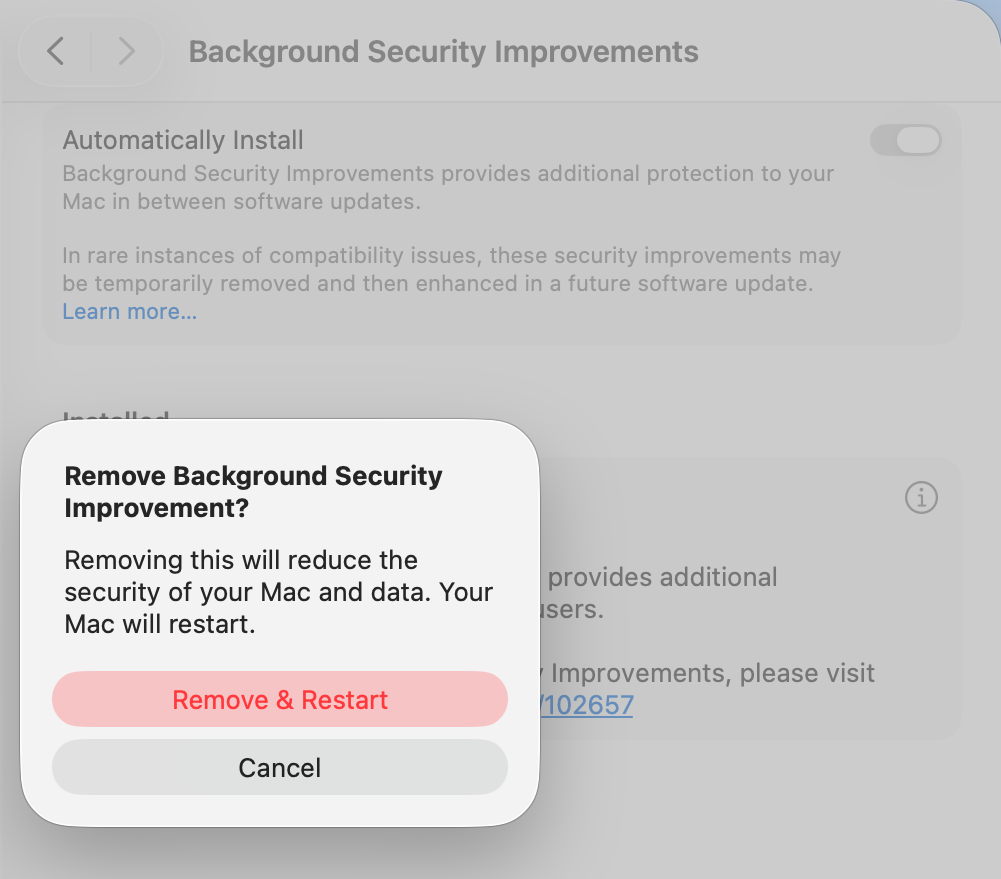
If you decide you want to remove the BSI, your Mac will need to be restarted.

Problems

If you know a BSI is available but Privacy & Security settings appear unable to find it, something I’ve encountered in Virtual Machines, try running SilentKnight. Although BSIs aren’t controlled in Software Update, they do still use the same softwareupdate system used by SilentKnight. Normally you shouldn’t try to install BSIs using SilentKnight, as installation will fail. However, you can turn this to your advantage when a BSI is being elusive.

Once SilentKnight has downloaded and failed to install the BSI, you should be notified of that failure. Restart your Mac, give it a couple of minutes to settle once you’ve logged back in, and open the BSI section in Privacy & Security settings again. The downloaded BSI should now be available, and shouldn’t even need to be downloaded.

If you think a BSI has caused another problem, such as instability in Safari, use the ⓘ Info button to remove that BSI.

Installing a BSI does weird things to the macOS version and build numbers, and those can break scripts and possibly some apps. While ProcessInfo.processInfo.operatingSystemVersion doesn’t contain a field for the BSI letter, ProcessInfo.processInfo.operatingSystemVersionString does return a full version description including the BSI letter and extended build number. In Terminal, sw_vers -productVersion returns the regular version number without BSI, while sw_vers -productVersionExtra returns the BSI designation alone.

Currently, SilentKnight and Skint ignore BSIs, and won’t inform you if you could have one installed except by listing it as an available installation, nor will they check whether your Mac is up to date with the latest BSI. Experience from RSRs in Ventura shows that trying to track lightweight updates like RSRs or BSIs is only going to annoy those who don’t want to install them, and as they can change in a short period, they are hard to track reliably. SilentKnight does report the full version and build number, and SystHist lists details of all BSIs that Mac has installed.

Limitations

Like the RSRs of Ventura, BSIs can only work for a limited range of patches. If a vulnerability needs a fix outside Safari, WebKit, and the dyld caches, then it will require a full macOS update to fix it. BSIs are only ever likely to be provided for the current version of the latest major version of macOS.

From its first account of RSRs, Apple has claimed that some RSRs and BSIs shouldn’t require a restart to apply their patches. However, every RSR and BSI to date has had to be completed by restarting that Mac, which is mildly disruptive and not as lightweight as we’d like.

If you disable Automatically Install in the BSI section of Privacy & Security settings, then your Mac won’t be informed about or have access to any BSIs.

Under the hood

Despite their control being part of Privacy & Security settings, BSIs are managed like all other macOS and related updates by softwareupdated. What is most remarkable about them is their speed of download, preparation and installation compared with macOS updates. From detection of a new BSI to logging back into the restarted Mac can take little more than five minutes.

Apple’s in-house term for BSIs is the same as it used for RSRs, Splat. You’ll also come across Semi-splat, which should be a transient state in which the Splat Restore Version is different from the Cryptex1 Restore Version. That’s normally rectified after the reboot.

softwareupdated checks specifically for BSIs by scanning the update server catalogue for Splat updates. In this case, for an App cryptex, the download size is given as 214 MB. There’s a brief preflight phase, followed by its download. Although no progress indicator is shown in Privacy & Security settings, softwareupdated does record progress, but using similar figures for a full macOS update. Under those, preparing the update is set at 60% progress.

Applying the update takes around 2.5 seconds, at which stage softwareupdated reports that Semi-splat is active because of unequal restore versions, and rollback objects are checked.

Once the Mac has restarted, property list paths are checked for six different Splat versions, enabling the restore versions to be rectified and Semi-splat is no longer active. A brief purge of update assets is performed, and softwareupdated checks once again for any available updates.

Is a BSI just an RSR in disguise?

Apart from the move of its control from Software Update to Privacy & Security settings, there appear to be few if any differences between them. This is even reflected in version numbering. Installing the first RSR for macOS 13.3.1 brought it to version 13.3.1 (a), with a build number of 22E772610a. This first BSI for macOS 26.3.1 brings it to version 26.3.1 (a), with a build number of 25D771280a.

Most telling, though, are the accounts of RSRs and BSIs given in Apple’s Platform Security Guide, which are almost word-for-word identical apart from their names. It seems most likely that a BSI is a rebranded RSR in a bid to move on from the loss of confidence in RSRs following unfortunate errors nearly three years ago.

Key points

  • If you’re running the current version of the latest major version of macOS, BSIs provide lightweight fixes for some vulnerabilities, including those in Safari and WebKit.
  • Enable them in Privacy & Security settings, in their section at the foot. If they aren’t enabled there, you won’t be offered them at all.
  • Control their installation in that section. Once you’ve agreed to install one and have authenticated, your Mac is likely to restart automatically soon after the BSI has been downloaded.
  • Remove and revert a troublesome BSI using the ⓘ Info button there.

Apple’s documentation

Support note about BSIs
List of BSIs by date
Security release notes for BSIs

Although the US English version of Apple’s Platform Security Guide has replaced its section on RSRs with an almost identical account of BSIs, most other localised versions of that guide still contain the old RSR version.

Previously

What is a Rapid Security Response (RSR)?
How an RSR went badly wrong

Explainer: macOS updates

By: hoakley
28 February 2026 at 16:00

If you keep your Mac up to date with the current version of macOS, at least half a dozen times a year you’ll install an update to bring it to the latest version. This article explains how those updates have worked in recent years.

Before Big Sur

Before we upgraded to Big Sur, macOS updates were relatively simple and based on Installer packages, structured collections of files that are copied to the boot volume in accordance with scripts, run by the Installer app. Once that copying is complete and the boot volume contains the files forming the new version of macOS, the Mac can be rebooted from those.

This system update in Mac OS X 10.1.3 in March 2002 was installed by the Installer app following authentication.

This became more complex with macOS 10.15 Catalina, as that was the first to divide what had previously been a single boot volume into two, System and Data. The diagram below shows in miniature what happened during the course of Catalina’s first two minor updates, as an example.

comboupdate1

Upgrading from Mojave to Catalina 10.15.0 was performed using Installer packages that completely replaced everything in its system, created in a new System volume, as shown at the top. This was referred to as an upgrade, as the whole system was installed afresh.

Then (skipping a Supplemental Update) came the first minor update to 10.15.1 on 29 October 2019. For the sake of this example, consider that includes a new version of the cat command tool. Rather than that update containing the whole system all over again, it only contains and installs what has changed, including that new cat binary.

Then on 10 December 2019 Apple released the update to 10.15.2, containing another set of changed files, this time perhaps replacing the cp command tool. There are two ways to install that update, either as a delta update or a Combo. The delta update contains the changes from 10.15.1, here cp; the Combo update contains everything that has changed since 10.15.0, both that in 10.15.1, here cat, and in 10.15.2 with cp.

Combo updates tackled what was then a not uncommon problem, when a previous update hadn’t been installed correctly. If the update to 10.15.1 didn’t actually install the new cat and we then installed the delta update for 10.15.2, the latter may not have worked properly. As there was limited error checking in those old updaters, we would then be using a flawed installation of macOS. By installing the 10.15.2 Combo updater instead of the delta, the chance of errors like that were significantly reduced.

Because updates, whether delta or Combo, were Installer packages, Apple not only supplied and installed them using Software Update and its command tool equivalent softwareupdate, but they were also provided for download from webpages in Apple’s Support site. If you had more than one Mac to update, it made sense to download and use the update package.

Big Sur and the SSV

Catalina’s novel boot volume group, with its separate System and Data volumes, was only an intermediate step to Big Sur, which brought the greatest structural change in Mac operating systems since the introduction of Mac OS X twenty years earlier. The great majority of macOS now runs from a mounted snapshot with a read-only file system separate from that of user files on the paired Data volume, and requires a fundamentally different method of installation and updating.

m1proupdate

In addition to updating the contents of the system, from Big Sur onwards installers and updaters have considerably more to do. Those tasks include creating the new snapshot to contain the bootable copy of the system, firmlinking that System snapshot with its paired Data volume, building a tree of cryptographic hashes so that the snapshot can be sealed, and verifying the signature of its seal against Apple’s requirement.

comboupdate2

These changes can be seen by following Big Sur’s first couple of updates. On 14 December 2020, the update to 11.1.0 might have gone through similar changes to Catalina, with the replacement of its cat command tool. Once that had been installed on the System volume, a snapshot was made of that System volume, hashes were computed for all its contents, and assembled into a tree. At the top of the tree, a hash of all the hashes in the next layer down forms its seal, which is then hashed again to form the signature of the Signed System Volume (SSV). This signature is compared against that set by Apple for the whole volume, and only if they’re identical is the System snapshot accepted for use. There’s no room here for the slightest error if the signature on the SSV is going to match its requirement.

When that was updated again to 11.2.0 on 1 February 2021, perhaps with a new version of the cp tool, the new installer repeats this process of creating a new snapshot, building its tree of hashes, sealing them, creating the signature, and comparing that with Apple’s signature. This means that each and every update is verified to be perfect, and no errors are tolerated.

Safari and dyld caches

Not all the system is installed in the SSV. Apart from some separately updatable components such as XProtect, Apple decided to make Safari and its supporting WebKit components capable of being updated without going through the process of building a new SSV, so in Big Sur and Monterey they were installed on the Data volume. Accompanying those were large dyld caches containing frameworks and more. That changed in macOS Ventura, since when they have been delivered as cryptexes, sealed disk images that APFS can graft into the file system. Apple also used the same mechanism to deliver a few Rapid Security Responses (RSR), before discontinuing them.

dyld caches are one of the few parts of macOS that is single-platform. While Intel Macs are only provided with an Intel version, those on Apple silicon Macs include both architectures, to support Intel-only apps running in translation by Rosetta 2. The second set is largely responsible for the fact that Apple silicon Mac updates are invariably larger than those for Intel Macs.

Apple has since redeveloped its RSR mechanism, and has introduced them as Background Security Improvements (BSI) in Tahoe, although none has yet been released to the public.

Upgrades and updates

Installing a new major version of macOS to go from 10.13 to 10.14, for example, had been accomplished by Software Update downloading a full Installer app, which then replaced the whole of the old system with the new one. From macOS 12.3 that changed, and whenever possible macOS now effectively performs an update by replacing only changed files before it builds the new SSV. This has reduced both the download time required and that needed to decompress and prepare the update.

This has had the side-effect that ordinary non-admin users can now upgrade macOS from one major version to a later one, an action that previously required admin privileges.

Combo updates

In the new system from Big Sur onwards, Apple only provides Combo updates for those updating from versions of macOS older than the previous version, and only when required. If you were to update straight from 15.0 to 15.2, then your Mac downloads all that it requires for that update. If your Mac is already running 15.1, there’s no option to install the changes in 15.1 again, nor should you need to, as its installation in 15.1 has already been verified as being identical to Apple’s reference.

If you felt that wasn’t adequate, then the only option is to install the whole of 15.2 from scratch by running the Sequoia 15.2 Installer app. More recent installers are more likely to complete this without disturbing the Data volume, and requiring its migration from a backup.

Although these complexities may seem bewildering, macOS updates conceal all of this from the user and most commonly work transparently. However, it can explain why some updates can turn out to be significantly larger than expected.

Further reading

A brief history of installing Mac OS: Mac OS 9.1
A brief history of installing Mac OS: Mac OS X and beyond

Which cryptexes does macOS Tahoe load?

By: hoakley
19 January 2026 at 15:30

Since macOS Ventura, if not in late releases of Monterey, macOS has been loading Safari and other parts of the operating system, including dyld caches, in cryptexes, instead of installing them in the Data volume. In addition to those, Apple silicon Macs with AI enabled load additional cryptexes to support its features. I detailed those for macOS 15.5 last summer; this article updates that information for macOS Tahoe 26.2.

Cryptexes

These first appeared on Apple’s customised iPhone, its Security Research Device, which uses them to load a personalised trust cache and a disk image containing corresponding content. Without the cryptex, engineering those iPhones would have been extremely difficult. According to its entry in the File Formats Manual from five years ago (man cryptex), ‘A cryptex is a cryptographically-sealed archive which encapsulates a well-defined filesystem hierarchy. The host operating system recognizes the hierarchy of the cryptex and extends itself with the content of that hierarchy. The name cryptex is a portmanteau for “CRYPTographically-sealed EXtension”.’

In practice, a cryptex is a sealed disk image containing its own file system, mounted at a chosen location within the root file system during the boot process. Prior to mounting the cryptex, macOS verifies it matches its seal, thus confirming it hasn’t been tampered with. Managing these cryptexes is the task of the cryptexd service with cryptexctl. Because cryptexes aren’t mounted in the usual way, they’re not visible in mount lists such as that produced by mount(8).

System cryptexes

Once kernel boot is well under way, APFS mounts containers and volumes in the current boot volume group, followed by others to be mounted at startup. When those are complete, it turns to mounting and grafting the three standard system cryptexes, os.dmg containing system components such as dyld caches, app.dmg containing Safari and its supporting components including WebKit, and os.clone.dmg a clone of os.dmg that shares its data blocks with os.dmg. Grafting all three takes around 0.034 seconds, and typically occurs over 15 seconds after APFS is started, and around 25 seconds after the start of boot.

AI cryptex collection

About 5 seconds after the system cryptexes have been grafted, APFS checks and grafts a series of cryptexes primarily involved with Apple Intelligence features. These are handled one at a time in succession, and are listed in the Appendix. Typical time required to complete this collection is less than 0.5 seconds.

Ten new AI cryptexes have been added in Tahoe, and five of Sequoia’s have been removed, bringing the total including the PKI trust store from 23 to 28. Notable among the additions are:

  • language instruction support for image tokenisation
  • support for drafting replies in Messages
  • suggesting action items in Reminders
  • support for Shortcuts
  • suggesting recipe items.

Conclusions

  • Apple silicon Macs running macOS 26.2 with AI enabled load 28 additional cryptexes to support AI.
  • One cryptex is a secure PKI trust store, whose volume name starts with Creedence.
  • These cryptexes are installed and updated as part of macOS updates, although they could also be installed or updated separately, for example when AI is enabled.
  • If a Mac shows an unusual mounted volume with a name starting with Creedence or Revival, that’s almost certainly the respective disk image, which should normally be hidden and not visible in the Finder.

Appendix

Disk image names for the main AI cryptex collection in macOS 26.2 (Apple silicon):

  • UC_FM_CODE_GENERATE_SAFETY_GUARDRAIL_BASE_GENERIC_H16S_Cryptex.dmg
  • UC_FM_CODE_GENERATE_SMALL_V1_BASE_GENERIC_H16_Cryptex.dmg
  • UC_FM_LANGUAGE_INSTRUCT_300M_ADM_PROMPT_REWRITING_DRAFT_GENERIC_GENERIC_H16S_Cryptex.dmg
  • UC_FM_LANGUAGE_INSTRUCT_300M_BASE_GENERIC_GENERIC_H16S_Cryptex.dmg
  • UC_FM_LANGUAGE_INSTRUCT_300M_IMAGE_TOKENIZER_GENERIC_GENERIC_H16S_Cryptex.dmg
  • UC_FM_LANGUAGE_INSTRUCT_3B_AUTONAMING_MESSAGES_DRAFT_GENERIC_GENERIC_H16S_Cryptex.dmg
  • UC_FM_LANGUAGE_INSTRUCT_3B_BASE_GENERIC_GENERIC_H16S_Cryptex.dmg
  • UC_FM_LANGUAGE_INSTRUCT_3B_CONCISE_TONE_DRAFT_GENERIC_GENERIC_H16S_Cryptex.dmg
  • UC_FM_LANGUAGE_INSTRUCT_3B_FM_API_GENERIC_DRAFT_GENERIC_GENERIC_H16S_Cryptex.dmg
  • UC_FM_LANGUAGE_INSTRUCT_3B_FRIENDLY_TONE_DRAFT_GENERIC_GENERIC_H16S_Cryptex.dmg
  • UC_FM_LANGUAGE_INSTRUCT_3B_MAGIC_REWRITE_DRAFT_GENERIC_GENERIC_H16S_Cryptex.dmg
  • UC_FM_LANGUAGE_INSTRUCT_3B_MAIL_REPLY_DRAFT_GENERIC_GENERIC_H16S_Cryptex.dmg
  • UC_FM_LANGUAGE_INSTRUCT_3B_MESSAGES_ACTION_DRAFT_GENERIC_GENERIC_H16S_Cryptex.dmg
  • UC_FM_LANGUAGE_INSTRUCT_3B_MESSAGES_REPLY_DRAFT_GENERIC_GENERIC_H16S_Cryptex.dmg
  • UC_FM_LANGUAGE_INSTRUCT_3B_PHOTOS_MEMORIES_ASSET_CURATION_OUTLIER_DRAFT_GENERIC_GENERIC_H16S_Cryptex.dmg
  • UC_FM_LANGUAGE_INSTRUCT_3B_PHOTOS_MEMORIES_TITLE_DRAFT_GENERIC_GENERIC_H16S_Cryptex.dmg
  • UC_FM_LANGUAGE_INSTRUCT_3B_PROFESSIONAL_TONE_DRAFT_GENERIC_GENERIC_H16S_Cryptex.dmg
  • UC_FM_LANGUAGE_INSTRUCT_3B_PROOFREADING_REVIEW_DRAFT_GENERIC_GENERIC_H16S_Cryptex.dmg
  • UC_FM_LANGUAGE_INSTRUCT_3B_REMINDERS_SUGGEST_ACTION_ITEMS_DRAFT_GENERIC_GENERIC_H16S_Cryptex.dmg
  • UC_FM_LANGUAGE_INSTRUCT_3B_SHORTCUTS_ASK_AFM_ACTION_3B_DRAFT_GENERIC_GENERIC_H16S_Cryptex.dmg
  • UC_FM_LANGUAGE_INSTRUCT_3B_SHORTCUTS_ASK_AFM_ACTION_3B_V2_DRAFT_GENERIC_GENERIC_H16S_Cryptex.dmg
  • UC_FM_LANGUAGE_INSTRUCT_3B_SUGGEST_RECIPE_ITEMS_DRAFT_GENERIC_GENERIC_H16S_Cryptex.dmg
  • UC_FM_LANGUAGE_INSTRUCT_3B_SUMMARIZATION_DRAFT_GENERIC_GENERIC_H16S_Cryptex.dmg
  • UC_FM_LANGUAGE_INSTRUCT_3B_TEXT_EVENT_EXTRACTION_DRAFT_GENERIC_GENERIC_H16S_Cryptex.dmg
  • UC_FM_LANGUAGE_INSTRUCT_3B_TEXT_PERSON_EXTRACTION_DRAFT_GENERIC_GENERIC_H16S_Cryptex.dmg
  • UC_FM_VISUAL_IMAGE_DIFFUSION_V1_BASE_GENERIC_H16S_Cryptex.dmg
  • UC_IF_PLANNER_NLROUTER_BASE_EN_GENERIC_H16S_Cryptex.dmg

New cryptexes are shown in bold. When these are mounted, their volume names add the prefix RevivalB13M202xxx where xxx are ID digits for that cryptex. That prefix replaces RevivalB13M201xxx used in macOS 15.5.

Additionally, a volume is mounted as a PKI trust store, as Creedence11M6270.SECUREPKITRUSTSTOREASSETS_SECUREPKITRUSTSTORE_Cryptex.

The following cryptexes found in macOS 15.5 appear to have been removed from 26.2:

  • UC_FM_LANGUAGE_INSTRUCT_3B_DRAFTS_GENERIC_GENERIC_H16S_Cryptex.dmg
  • UC_FM_LANGUAGE_INSTRUCT_3B_TEXT_EVENT_EXTRACTION_MULTILINGUAL_DRAFT_GENERIC_GENERIC_H16S_Cryptex.dmg
  • UC_FM_LANGUAGE_INSTRUCT_3B_TEXT_PERSON_EXTRACTION_MULTILINGUAL_DRAFT_GENERIC_GENERIC_H16S_Cryptex.dmg
  • UC_FM_LANGUAGE_INSTRUCT_3B_URGENCY_CLASSIFICATION_DRAFT_GENERIC_GENERIC_H16S_Cryptex.dmg
  • UC_FM_LANGUAGE_SAFETY_GUARDRAIL_BASE_GENERIC_GENERIC_H16S_Cryptex.dmg

❌
❌