Normal view

There are new articles available, click to refresh the page.
Before yesterdayMain stream

How does macOS keep its log?

By: hoakley
23 February 2026 at 15:30

One of the mysteries of the Unified log since its introduction almost ten years ago in macOS Sierra has been how it keeps such extensive records of what happens between the start of kernel boot and the user logging in. This must have been sufficiently challenging before Catalina, but since then the separate Data volume, where log files are stored, has been locked away by FileVault until the user’s password enables it to be accessed.

Log entries are initially stored in memory, and from there most are written to tracev3 files in their respective directories in /var/db/diagnostics. logd is responsible for that, and for maintaining the contents of that directory. Ironically, logd maintains its own old-style log in text files inside that directory, but its terse entries there reveal little about how it does its job. What they do reveal is that logd has an assistant, logd_helper, with its own old-style text logs that are a bit more informative.

In Apple silicon Macs, logd_helper apparently connects every few minutes to five coprocessors, SMC (System Management Controller), AOP (Always-On Processor), DCPEXT0, DCPEXT1 and DCPEXT2 (Display Co-Processors). There appears to be nothing equivalent in Intel Macs. It also conducts ‘harvests’ shortly after it has started up, so solving the mystery of where all the log entries are saved prior to unlocking the Data volume.

Soon after the start of kernel boot, once the Preboot volume is generally accessible and logd is running, logd starts writing log entries to temporary storage in the Preboot volume. You can see that in the path /System/Volumes/Preboot/[UUID]/PreLoginData, where there’s a complete diagnostics directory, and one to store longer log entries in the warren of directories in uuidtext. Those are identical in layout to permanent log storage in /var/db.

Shortly after user login, with the Data volume unlocked at last, logd_helper is started, and it merges log files from Preboot/[UUID]/PreLoginData/diagnostics and those files in Preboot/[UUID]/PreLoginData/uuidtext into permanent log storage in the Data volume in /var/db/diagnostics and /var/db/uuidtext, a process it refers to as harvesting. logd_helper can also harvest from entries stored in memory.

Once this merger has been completed, log directories in Preboot/[UUID]/PreLoginData/diagnostics are left empty, as are logdata.statistics files there, making the log record of kernel boot complete, right up to unlocking of the Data volume.

That explains how tens of thousands of log entries can still be recorded faithfully in a Data volume that can’t be unlocked for some time yet.

Once normal logging to /var/db/diagnostics is running, logd maintains the tracev3 files containing log entries there. Its goals appear to be:

  • in the Persist folder, file size is normally 10.4-10.5 MB, although it may be smaller when truncated by shutdown;
  • Persist files are removed with age to maintain a typical total size for that folder of just under 530 MB in just over 50 files, bringing the size of the whole diagnostics folder to between 1-2 GB;
  • in Special and Signpost, log file size is normally 2.0-2.1 MB when closed, but entries are weeded progressively until each file is empty and can be deleted;
  • timesync files are less than 1 KB;
  • HighVolume is seldom if ever used.

The overall effect on historical log entries is that those in Persist files are rate-sensitive and removed sooner when log entries are written more frequently. However, selected entries in Special files may last considerably longer, but become less frequent with age. A few of those may be retained for hours or days longer than the oldest in Persist files. I have no insight into the rules that logd follows when deciding when to weed entries from Special files.

Extended entries stored in the warren of folders in /var/db/uuidtext are purged periodically on request from CacheDelete, as with other purgeable storage, at least once a day. That should ensure that the contents are only retained while they’re still referred to by entries in the log files.

As far as I’m aware, the user gets no say in the size limits imposed on log storage, and there’s no option to increase them to allow logs to be retained for longer. However, as both /var/db/diagnostics and /var/db/uuidtext folders should be backed up by Time Machine and most third-party utilities, you can always analyse those backups when you need to check older log entries.

In the background: software update, backup & XProtect Remediator

By: hoakley
12 February 2026 at 15:30

Among the other activities you may see shortly after you’ve logged in to macOS Tahoe are a check for system software updates available from Apple’s servers, an initial Time Machine backup, and sometimes a set of XProtect Remediator scans. This article explains how those are dispatched by Duet Activity Scheduler and Centralised Task Scheduling, the DAS-CTS system.

DAS

Shortly after user login, DAS starts gathering its budgets enabling it to score activities, including thermal policies, shared memory and energy. It then loads saved activities by group, and solicits activities for resubmission and inclusion in its lists to be dispatched and run. It then periodically evaluates the activities in those lists, to determine which should and should not be run at that time.

In the early minutes after login, it may only have around 126 candidates in its lists, some of which it identifies as ‘passengers’, and doesn’t evaluate for the time being. For those activities it does evaluate, it arrives at a score between 0 and 1, and decides which it should dispatch next.

SoftwareUpdate

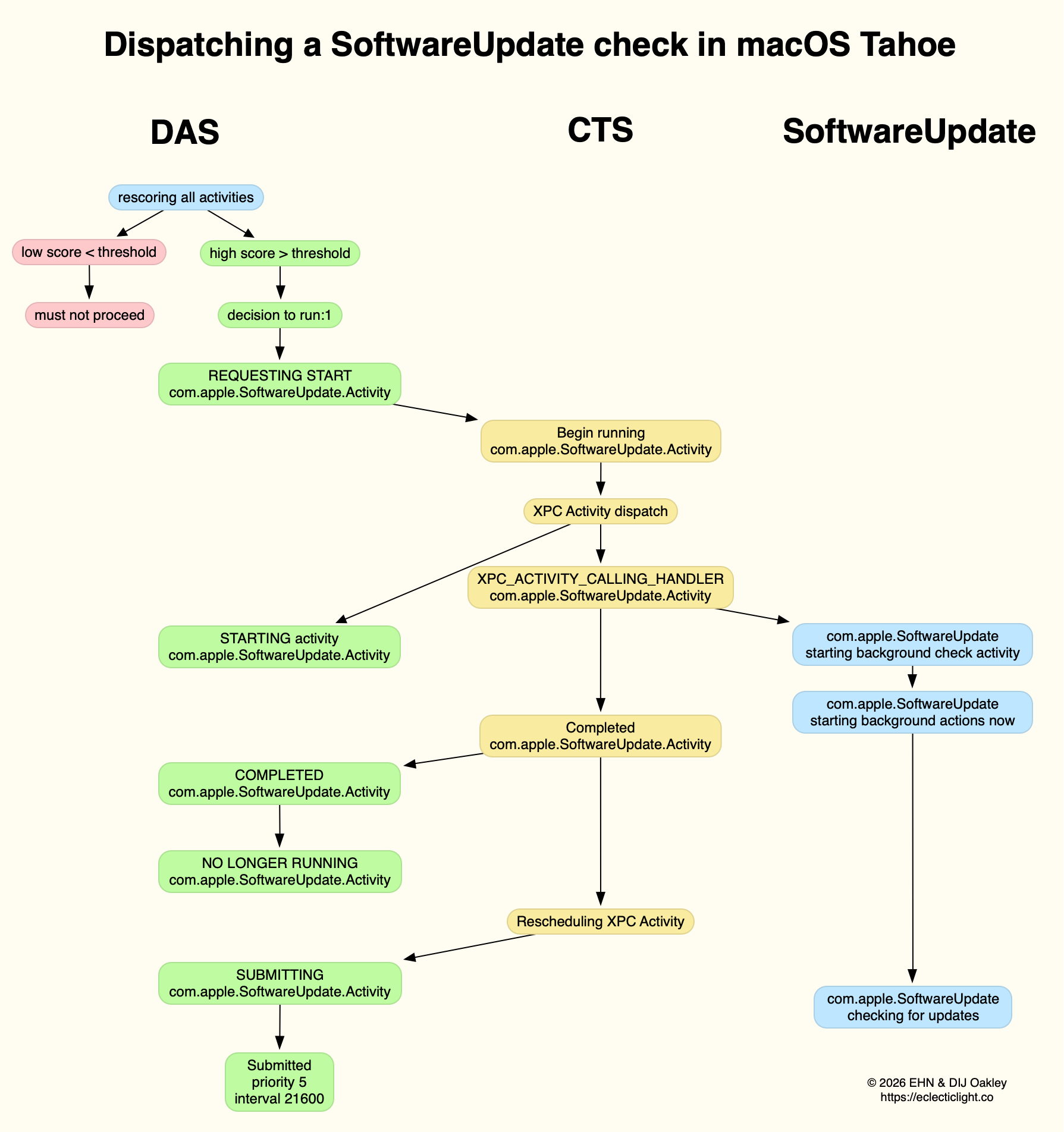
This normally reaches a score sufficient to be dispatched in the first few minutes after user login. That DecisionToRun is recorded in the log, and DAS requests CTS to start com.apple.SoftwareUpdate.Activity as root via XPC. This starts a dialogue between DAS and CTS, leading to the handler com.apple.SoftwareUpdate being called. That in turn starts its background check, and proceeds to check for updates.

CTS considers that activity is completed, and informs DAS of the fact. The activity is then rescheduled with DAS, in this case with a priority of 5, at an interval of 21,600 seconds, or 6 hours. Thus, SoftwareUpdate should check for new system updates approximately every 6 hours when your Mac is running, although the exact time of its dispatch by DAS will vary according to other activities and general conditions such as temperature and resource availability.

This is summarised in the diagram below.

In practice, the time between DAS deciding to run SoftwareUpdate and it running is likely to be less than 0.1 second, and online checks should be initiated within a further 0.1 second.

Time Machine backup

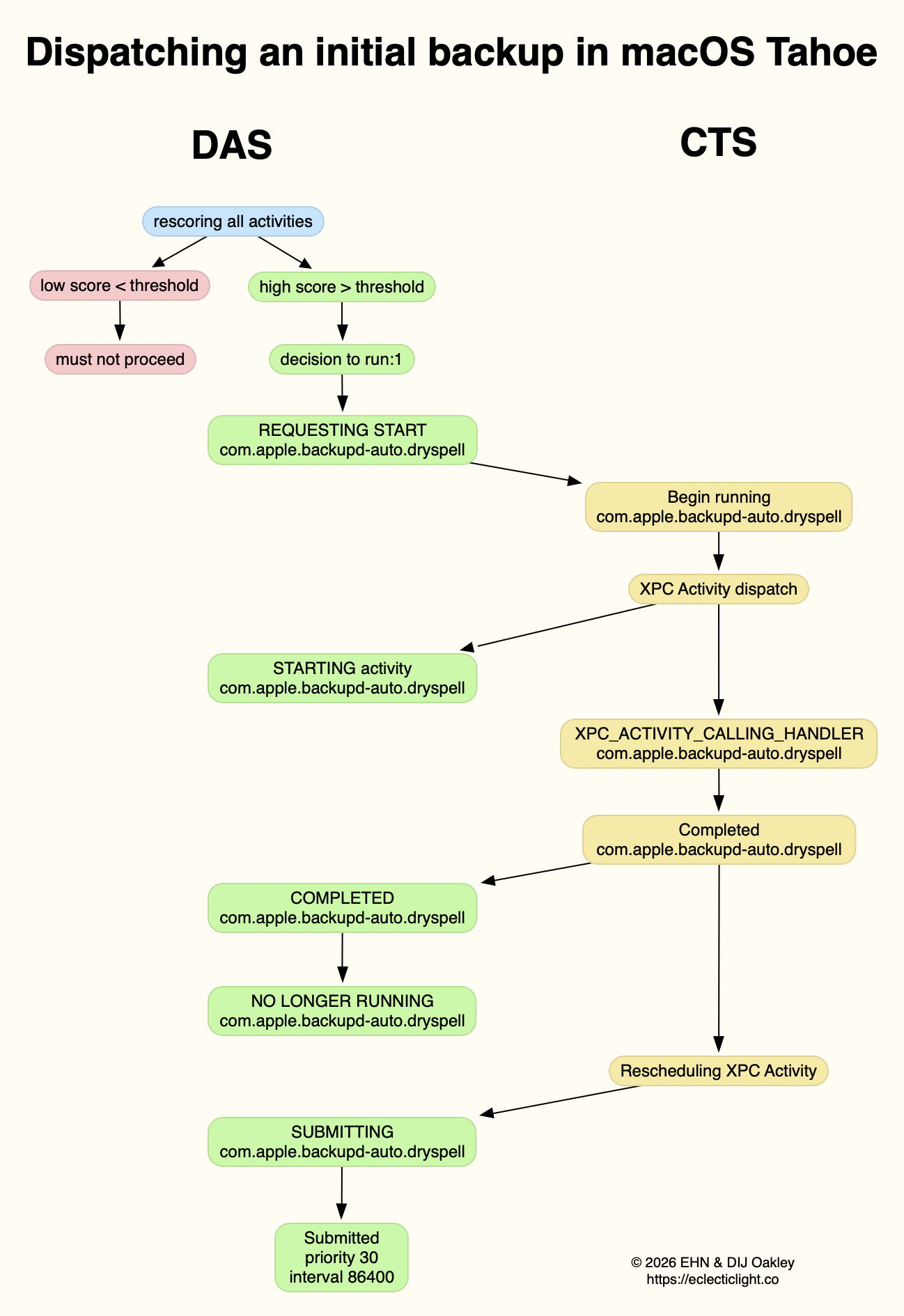
Automatic backups are normally delayed for the first 5 minutes after startup, and during that time DAS should decide not to proceed to dispatch them. When it does give them the go ahead, the activity dispatched is known as com.apple.backupd-auto.dryspell, indicating that it’s the initial backup made after startup. This too is run as root.

A similar dialogue between DAS and CTS is established, as shown in the diagram below.

What is distinctive here is that com.apple.backupd-auto.dryspell doesn’t result in the immediate initiation of a backup, but instead runs backupd-helper, and that can be delayed significantly before backupd itself is run to perform the backup. Although backupd-helper should be running within 0.2 seconds of DAS deciding to run the sequence, it may be a further 10 seconds before backupd itself is actively backing up. This is presumably because of other sustained and intense activities competing for resources at that time.

Dispatch of com.apple.backupd-auto.dryspell thus differs from the diagram below, showing dispatch of an ordinary automatic backup after the initial one, in macOS Sequoia.

com.apple.backupd-auto.dryspell is rescheduled by DAS at a priority of 30, and an interval of 86,400 seconds, or 24 hours, so it should work neatly for Macs that are powered up each day.

XProtect Remediator

Dispatch of a set of XPR scans is less predictable, as they’re likely to occur at roughly 24 hour intervals, but only when the Mac is running on mains power, and when it’s otherwise lightly loaded. If that happens to be the period of relative calm ten minutes or more after logging in, then background activity will be prolonged as the set of XPR scans is run.

By the time XPR was ready to scan here, DAS had a total of 600 pending activities, of which 254 were considered to be ‘passengers’. It therefore evaluated 74 activities, two of which were com.apple.XProtect.PluginService.daemon.scan, to be run as root, and com.apple.XProtect.PluginService.agent.scan as user. On some occasions, DAS will hold one of those from dispatch until the other is complete, but in this case it approved both to run simultaneously. Those went through a similar dialog between DAS and CTS, resulting in com.apple.XProtectFramework starting both as timed scans with standard priority, within less than 0.2 seconds of the decision by DAS to dispatch them.

As those were both timed scans, when XPR’s timers expired they were cancelled before fully completing. However, once a week XPR scans should be run without that timer, allowing them to finish all their scans.

XPC Activity states

If you follow CTS log entries for XPC activity, you’ll come across numeric states ranging between 0-5, such as
32.474139 com.apple.xpc.activity _xpc_activity_set_state: com.apple.SoftwareUpdate.Activity (0xb8ac3a080), 2
Those are documented in Apple’s source code as:

  • 0 XPC_ACTIVITY_STATE_CHECK_IN, check-in has been completed;
  • 1 XPC_ACTIVITY_STATE_WAIT, waiting to be dispatched and run;
  • 2 XPC_ACTIVITY_STATE_RUN, now eligible to be run;
  • 3 XPC_ACTIVITY_STATE_DEFER, to be placed back in its wait state with unchanged times;
  • 4 XPC_ACTIVITY_STATE_CONTINUE, will continue its operation beyond the return of its handler block, and used to extend an activity to include asynchronous operations;
  • 5 XPC_ACTIVITY_STATE_DONE, the activity has completed.

I hope this had given insight into what your Mac is up to during the first few minutes after you log in, why Apple silicon Macs show such high CPU % for their Efficiency cores, and how this results from important background activities.

Related

Explainer: XPC
In the background: Spotlight indexing

In the background: Spotlight indexing

By: hoakley
10 February 2026 at 15:30

If you’ve ever watched Activity Monitor shortly after logging in to your Mac, you’ll have seen how busy it is for the first ten minutes or more. Apple silicon Macs are different here, because their sustained high % CPU is largely restricted to the Efficiency cores. This is commonly attributed to Spotlight indexing files, and may appear worrying. This article tries to describe what’s going on over that period, and why it doesn’t necessarily mean there’s a problem with Spotlight.

On-the-fly indexing

When new files are created, or existing ones changed, Spotlight indexes them very quickly. The first mdworker process is spawned within a second, and others are added to it. They’re active for about 0.2 seconds before the new posting lists they create are ready to be added to that volume’s indexes. They may later be followed by CGPDFService and mediaanalysisd running similar image analysis to that performed in Live Text. Text extracted from the files is then compressed by mds_stores before adding it to that volume’s Spotlight indexes, within seven seconds or so of file creation.

These steps are summarised in the diagram above, where those in blue update metadata indexes, and those in yellow and green update content indexes. It’s most likely that each file to be added to the indexes has its own individual mdworker process that works with a separate mdimporter.

Spotlight indexes

The indexes used in search services are conventionally referred to as inverted, because of the way they work, and those would normally be largely static. Spotlight’s have to accommodate constant change as files are altered and saved, new files are created, and others are deleted. To enable its main inverted indexes to remain well-structured and efficient, Spotlight stores appear to use separate transient posting tables to hold recently acquired metadata and content. Periodically data from those is assimilated into its more static tables. Similarly, when files are deleted their indexed metadata and contents aren’t removed immediately, but when the store next undergoes housekeeping.

Image analysis and text extraction performed by CGPDFServices and mediaanalysisd, introduced in macOS Sonoma, are computationally intensive, and normally deferred until they can be performed with minimal disruption to the user. When completed, that text also needs to be incorporated in Spotlight’s content indexes.

Startup sequence

I gathered 15 log extracts each covering all entries (excluding Signposts) for periods of 3 seconds during the 11 minutes of high Spotlight process activity after user login, on a Mac mini M4 Pro running macOS 26.2 Tahoe. Those show Spotlight processes running in phases, starting from an arbitrary time zero when their activity was first seen reaching a peak:

  • 00:00 – mdworker processes were indexing files for periods of 1-4 seconds each; Spotlight indexes were being maintained, with a journal reset and sync;
  • 02:40 – CGPDFService started;
  • 04:10 – mediaanalysisd started running its Live Text extraction on files, with photoanalysisd activity; then coremanagedspotlightd maintained indexes, replaying journals;
  • 07:20 – mediaanalysisd continued Live Text extraction;
  • 10:40 – mdworker returned to indexing as before; index maintenance occurred again with a journal reset and sync, following which index file permissions were set;
  • 10:45 – caches were deleted and there was general tidying up before background processes tailed off.

Times are given as MM:SS following the arbitrary start. After about 5 minutes had elapsed, Activity Monitor and the log also showed substantial activity for the initial Time Machine backup, and running the daily complete set of XProtect Remediator scans.

All Spotlight processes appeared to run in the background, at low QoS and on Efficiency cores, apart from those of mediaanalysisd. That process was run at a QoS of Utility rather than Background or Maintenance, and confirmed by the MADServiceTextProcessing being called with a QoS numeric value of 17 instead of 9 or less. That would normally be scheduled on Performance cores, although little was seen on those in Activity Monitor’s CPU History window. Text extraction run by mediaanalysisd typically took about 0.25 seconds for each file processed. mediaanalysisd ran repeatedly for about 6 minutes, between 04:10 and about 10:40.

Abnormally prolonged indexing

Several macOS upgrades in recent years appear to have caused Spotlight indexing at startup to take prolonged periods, in some cases reported as several days, and comparable to the time required to rebuild all indexes from scratch. Given the paucity of log entries recording index maintenance, this can be difficult to confirm, although text extraction by mediaanalysisd is easier to identify. In most cases, it seems preferable to allow prolonged maintenance to run to completion, by allowing that Mac to run without sleeping. In Apple silicon Macs, as those maintenance processes should run almost exclusively on E cores, this should have limited impact on the user.

Forcing a full reindex of a volume is likely to take longer than allowing maintenance to complete.

Key points

  • Spotlight indexes new and changed files rapidly to supplementary journals rather than main indexes.
  • Macs that are shut down daily perform extensive indexing and index maintenance shortly after the user logs in.
  • Macs that remain running should perform the same maintenance periodically during light use.
  • Maintenance includes the incorporation of supplementary journals into main indexes
  • Text extraction from images by mediaanalysisd is performed at the same time, and can take a long time.
  • Although image analysis may be run on P cores, almost all Spotlight indexing and maintenance is performed in the background on E cores.
  • Prolonged indexing and maintenance isn’t necessarily a bad sign, and may well be normal.
  • Disrupting Spotlight routine maintenance may affect search results.

How does an Apple silicon Mac tell the time?

By: hoakley
29 January 2026 at 15:30

Anyone familiar with Doctor Who will be aware of the power brought by control over time. Although there have been sporadic reports of problems with Apple silicon Macs keeping good time, and they may not synchronise sufficiently accurately for some purposes, they appear to have generally good control over time.

Last year I explained how macOS now uses the timed service with network time (NTP) to perform adjustments while running. This article looks at what happens before that, during startup, when the Mac has only its own devices to tell the time. Although the user sees little of this period, anyone accessing the log recorded during startup could find the timestamps of entries affected by adjustments. It may also provide insights into how Apple silicon Macs tell the time.

Methods

To investigate clock initialisation and adjustment during startup, I analysed approximately 100,000 consecutive log entries freshly recorded in the log of a Mac mini M4 Pro booting cold into macOS 26.2, following a period of about 14 hours shut down. These entries covered the period from the initial boot message for approximately 27 seconds, after I had logged in and the Desktop and Finder were displayed. This Mac is configured to Set time and date automatically from the default source of time.apple.com in Date & Time settings, and has both WiFi and Ethernet connections.

Multiple adjustments to wallclock time were recorded during that period, resulting in significant discontinuities in log timestamps. For example,
11:40:15.888717 void CoreAnalyticsHub::handleNagTimerExpiry(IOTimerEventSource *)::838:messageClients of 37 available events
11:40:10.045582 === system wallclock time adjusted
11:40:10.053309 000009.664065 Sandboxing init issue resolved: "Success"
11:40:10.053447 com.apple.sandbox.reporting Sandbox: wifiFirmwareLoader(49) deny(1) file-read-metadata /Library
11:40:10.112333 === system wallclock time adjusted
11:40:10.127559 com.apple.Installer-Progress Progress UI App Starting

In the first of those adjustments, the wallclock time was retarded by up to 5.84 seconds, and in the second it was advanced by at most 0.0589 seconds.

Because of those wallclock adjustments, times recorded in the log are discontinuous. Although it’s not possible to correct for the adjustments made completely accurately, assuming that each of those adjustments corresponds to standard time (such as UTC), those can be applied backwards through times recorded in the log to bring them closer to that standard. This could result in some brief periods of entries with times earlier than preceding entries, but is as accurate an estimate possible given the data.

Adjustments found

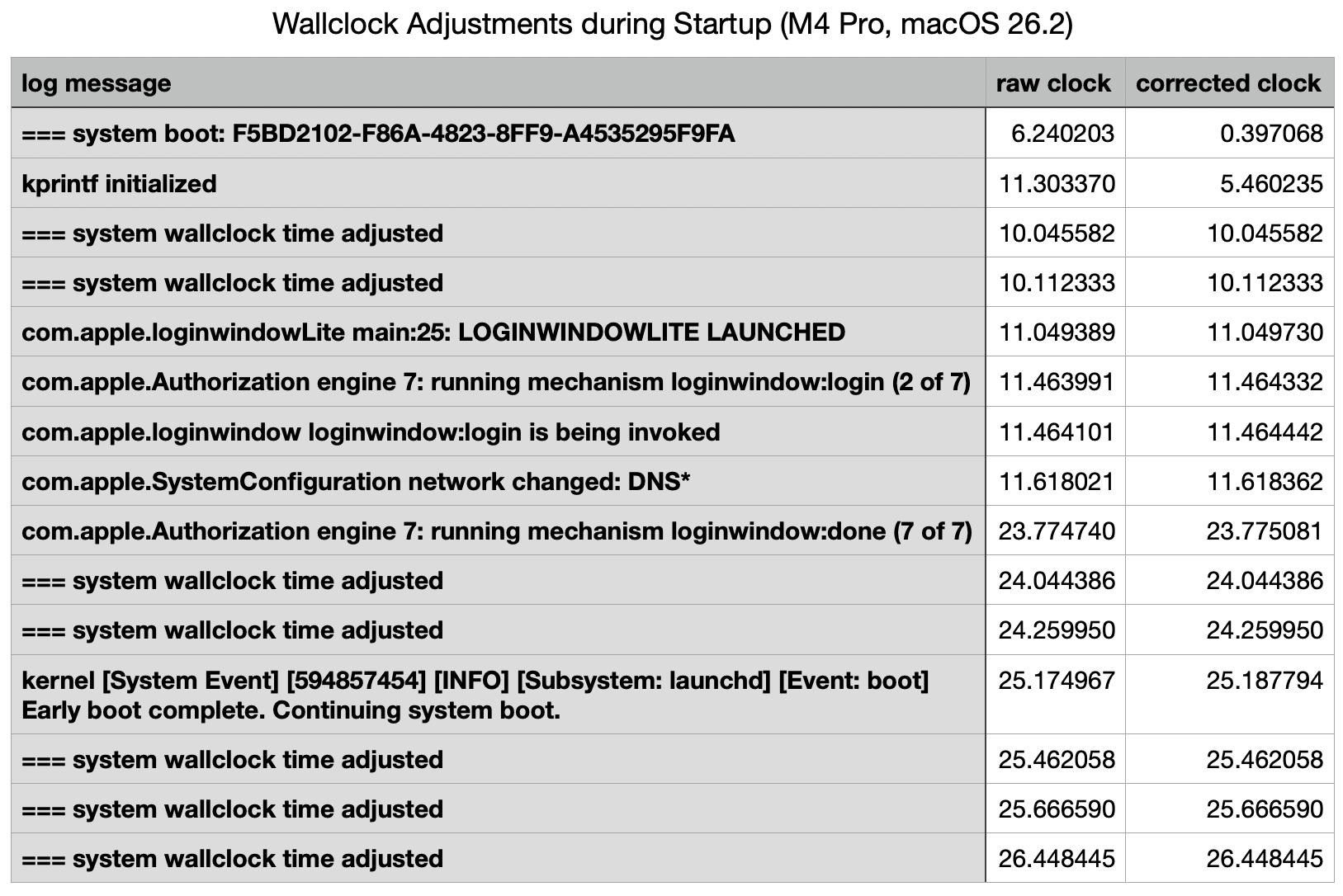
The narrative constructed from the log is summarised in the following table.

This starts with the initial record of the boot process, giving its UUID, within a second of the Power button being pressed (at approximately 0.0 seconds) to initiate the startup. That’s followed by a gap of just over 5 seconds before the second log entry.

The first two wallclock adjustments were made at 10 seconds, before there was any evidence of network connectivity. Those took place one second before the loginwindow was launched.

Two subsequent adjustments were made shortly after 24 seconds, immediately following the removal of the loginwindow after successful authentication. A further three adjustments followed in the 2.5 seconds after the user was logged in, while the Desktop and Finder were being prepared and displayed.

Log entries reporting the timed service was running didn’t occur until shortly before the last of those wallclock adjustments, and that was recorded in the log 0.0003 seconds before timed obtained its first external time.

Multiple internal clocks

A total of seven wallclock time adjustments were made before timed was able to obtain a time from any external reference. Over the first 10 seconds, before the initial wallclock adjustment, those were substantial, amounting to 5.8 seconds. For those changes to be made to wallclock time, there must be another source of time deemed more accurate, against which wallclock time can be compared and adjusted.

I’ve been unable to find any trustworthy information about internal clocks and timekeeping in Apple silicon Macs. It has been suggested (and Google AI is confident) that local reference time is obtained from the Secure Enclave. However, Apple’s only detailed account of features of the Secure Enclave fails to mention this. Initialisation of the Secure Enclave Processor also occurs relatively late during kernel boot, in this case at around the same time as the first two adjustments were made to wallclock time.

Conclusions

  • Apple silicon Macs may make multiple adjustments to wallclock time during startup, resulting in several discontinuities in log timestamps, which can cause discrepancies in event times.
  • Several of those can occur before the Mac has access to external time references, and timed is able to obtain an external time against which to adjust wallclock time.
  • Wallclock time can’t be the only local source of time, and appears to be adjusted against another local source.
  • Time isn’t as simple as it might appear.

Should you restart or cold boot?

By: hoakley
27 January 2026 at 15:30

There are two ways to restart a Mac that’s already running: you can either use the Apple menu command Restart (or an equivalent in Terminal), or you can shut it down, leave it a few seconds, and start it up afresh in what’s known as a cold boot. This article examines whether there’s any difference, and which you should prefer.

Differences

When a desktop Mac starts up from cold, its power supply starts providing power to its internal components, and when the boot process starts they are all initialised from their power-off state. There’s one small exception to that in the internal clock, possibly part of the Always On Processor (AOP) in Apple silicon Macs.

It’s commonly held that a regular (or warm) restart doesn’t interrupt the power supplied to internal components, as Intel Macs may not undergo power-on self-testing (POST) when only restarted. That doesn’t appear to be correct, though, as it’s easily demonstrated that Intel Macs with T2 chips do undertake a POST during a restart. Apple silicon Macs don’t appear to perform a similar form of POST. Neither does there appear to be any difference for peripherals, which are shut down before being started up again whether the Mac is booted warm or cold.

It’s also most unusual to attempt a true cold boot, particularly in a laptop. To remove all power from a desktop Mac requires it to be disconnected from its mains power supply, and for a laptop the internal battery also needs to be isolated or removed, something only performed during service by a technician.

What is clear is that the period during which power is turned off is very different: during a warm restart that’s only a second or two.

Received wisdom is that this allows data to be retained in memory through a warm restart, but that it’s wiped clean after a cold boot. This was first documented by Alex Halderman and others, who used it to perform ‘cold boot’ attacks to recover encryption keys. They demonstrated that RAM contents were still recoverable many seconds after shutting down, and could be used to recover encryption keys and other critically secure data. A great deal has changed since that research was undertaken. As far as the protection of secrets is concerned, all modern Macs have secure enclaves and use Extended Anti-Replay Technology (xART) to prevent that.

It’s thus plausible that there could be some differences in hardware between a restart and a cold boot, but careful comparison of log entries during booting from a Mac’s internal SSD fails to reveal any significant differences there.

How long to wait?

There appears to be no useful evidence for recent and current Macs to determine how long you should wait between shutdown and a cold boot. Periods given range widely, from a few seconds to a minute or more.

Experience

There are many reports of cold boots resolving problems that weren’t affected by a warm restart, but those are generally if not exclusively for Intel Macs, and most usually those without T2 chips.

I have only once experienced a problem in an Apple silicon Mac that required a cold boot, and that occurred a couple of years ago with a dual-boot setup that wouldn’t restart into its primary macOS on its internal SSD, but would do so when started up with a cold boot.

Cold booting is sometimes recommended following more severe problems, such as a freeze or kernel panic. As the normal way to recover from a frozen Mac is to force shutdown using the Power button, there is no option other than a cold boot. Kernel panics should normally result in an automatic restart, the behaviour that demonstrates that a panic took place, and only after that restart is the panic confirmed in an alert, from where the panic log can be accessed. There is no option to perform a cold boot until after the restart. Apple silicon Macs are almost invariably cold booted into Recovery or Safe mode, as those require a long hold of the Power button.

Thus the choice between a restart and a cold boot is usually determined by the problem that has occurred.

Summary

  • Perform a cold boot by shutting down, waiting at least ten seconds, then starting up again.
  • A cold boot may sometimes be more effective at fixing problems than a restart.
  • If you have tried restarting your Mac to address a problem and that didn’t help, try a cold boot.
  • Cold booting may be more effective at addressing problems with external boot disks, or possibly with other peripherals.
  • We don’t fully understand why a cold boot might differ in effect from a restart, but it could.
  • There is no evidence that a Mac should always, or usually, be cold-booted rather than restarted.

❌
❌