Normal view

There are new articles available, click to refresh the page.
Yesterday — 17 December 2025Main stream

Which extended attributes does macOS Tahoe preserve?

By: hoakley
17 December 2025 at 15:30

Extended attributes (xattr) contain a wide range of metadata, some of which are intended to persist with the file they’re attached to, others to be more transient. Depending on the type of file operation performed, macOS has an elaborate mechanism for determining which are preserved, and which are not. This article tries to explain how this works in macOS Tahoe 26.0.

Xattr flags

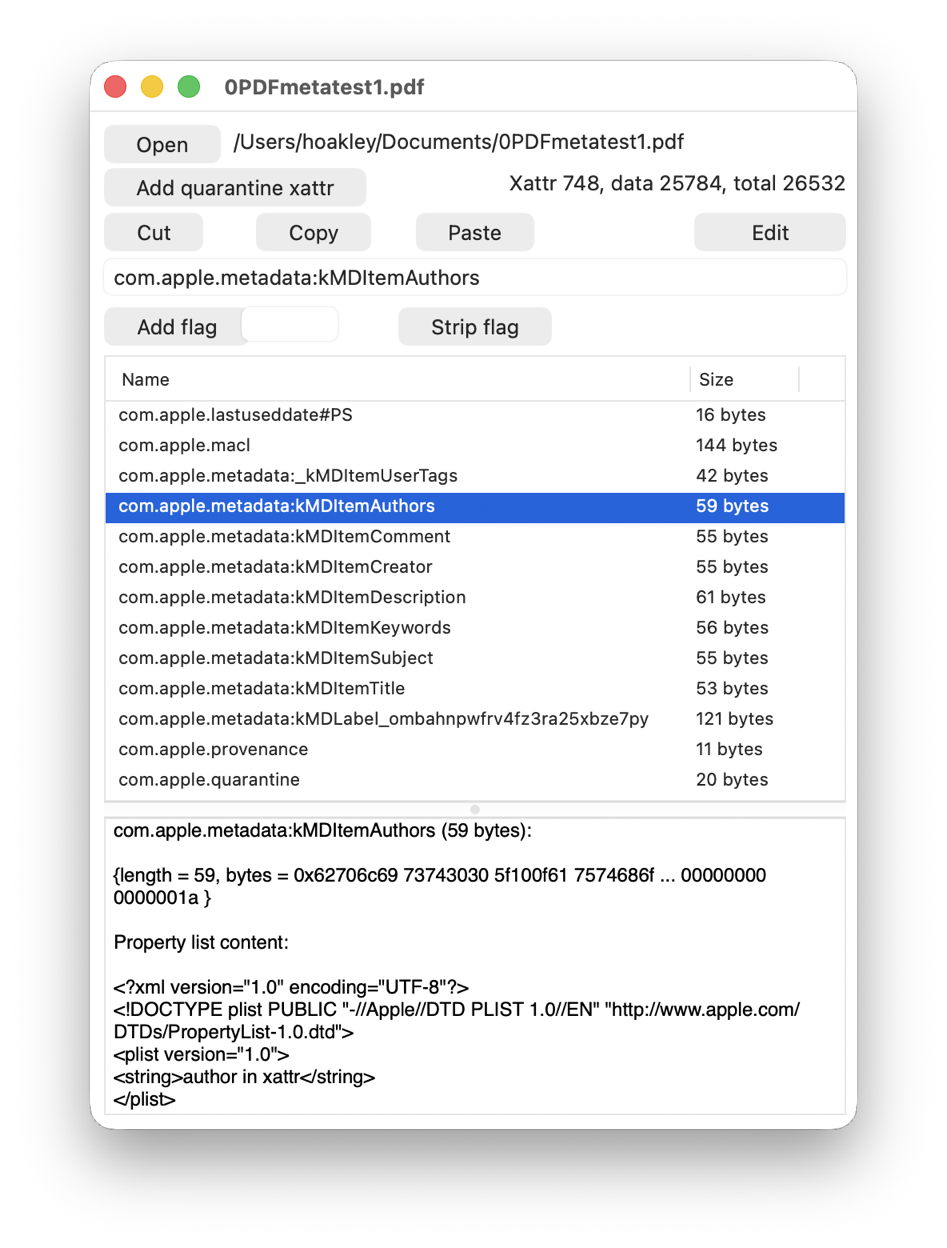
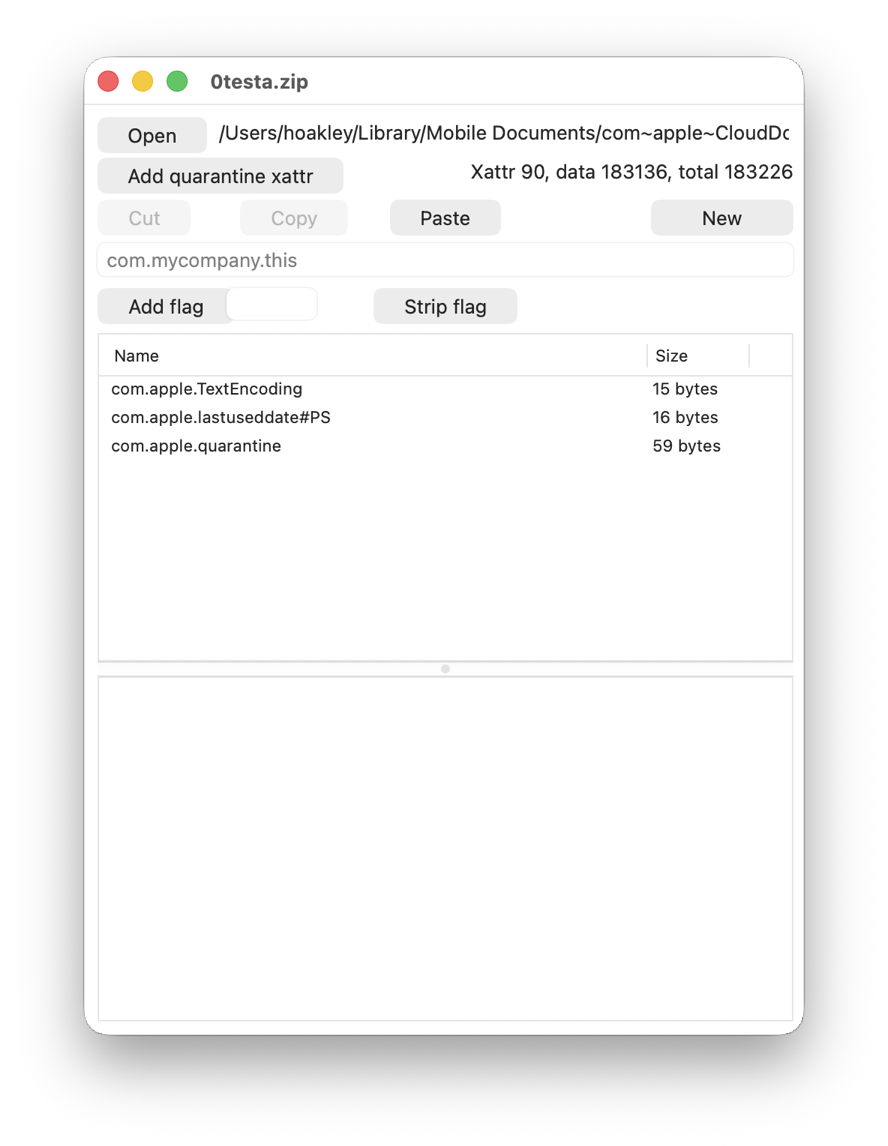
When first introduced in Mac OS X, no provision was made for xattrs to have type-specific preservation, and that was added later using flags suffixed to the xattr’s name. For example, the com.apple.lastuseddate xattr found commonly on edited files is shown with a full name of com.apple.lastuseddate#PS to assign the two flags P and S to it, and the most recent xattr com.apple.fileprovider.pinned, used to mark files in iCloud Drive that have been pinned, has the two flags P and X assigned to it for a the full name of com.apple.fileprovider.pinned#PX.

pinning4

This is a kludge, because you normally have to refer to the xattr name including its flags, although the flags aren’t really part of its name. This can catch the unwary.

It’s further complicated by a set of system tables for some standard xattr types that don’t have flags suffixed, but are treated as if they do. One notable example of those is the quarantine xattr com.apple.quarantine, which is handled by macOS as if it has the PCS flags attached, although those are never used when referring to it by name.

There are also lower case flags that can be used to override those set in system tables, although those appear to be used exceedingly rarely, and I don’t recall ever coming across them. In theory, if you were using a new type based on the standard com.apple.metadata: family, com.apple.metadata:kMDItemNew, you could alter its behaviour to some similar types with the flags psB, as in com.apple.metadata:kMDItemNew#psB. I have no idea whether that would be respected in practice. For the rest of this article, I will ignore the existence of those lower case flags.

Intents

File operations involving decisions about the preservation of xattrs are simplified into the following intents:

  • copy – simply copying a file from a source to a destination and preserving its data, such as using cp, is labelled XATTR_OPERATION_INTENT_COPY
  • save – saving a file when probably changing its content, including performing a ‘safe save’; this may over-write or replace the source with the saved file. Some xattrs shouldn’t be preserved in this process of XATTR_OPERATION_INTENT_SAVE
  • share – sharing or exporting this file, perhaps as an attachment to email, or placing the file in a public folder. Some sensitive metadata shouldn’t be preserved in XATTR_OPERATION_INTENT_SHARE
  • sync – syncing the file to a service such as iCloud Drive, in XATTR_OPERATION_INTENT_SYNC
  • backup – backing the file up, perhaps using Time Machine, in XATTR_OPERATION_INTENT_BACKUP.

Flags

As of macOS 15.0 (including 26.0), the following flags are supported:

  • C: XATTR_FLAG_CONTENT_DEPENDENT ties the flag with the file contents, so the xattr has to be recreated when the file data changes. This may be appropriate for checksums and hashes, text encoding, and position information. The xattr is then preserved for copy and share, but not in a safe save.
  • P: XATTR_FLAG_NO_EXPORT doesn’t export or share the xattr, but preserves it during copying.
  • N: XATTR_FLAG_NEVER_PRESERVE ensures the xattr is never preserved, even when copying the file.
  • S: XATTR_FLAG_SYNCABLE ensures the xattr is preserved during syncing with services such as iCloud Drive. Default behaviour is for xattrs to be stripped during syncing, to minimise the amount of data to be transferred, but this flag overrides that.
  • B: XATTR_FLAG_ONLY_BACKUP keeps the xattr only in backups, including Time Machine, where there’s no desire to minimise what’s backed up.
  • X: XATTR_FLAG_ONLY_SAVING keeps the xattr only when saving and in backups, including Time Machine (macOS 15.0 and later only).

There’s another system limit that must be adhered to: total length of the xattr name including any # and flags cannot exceed a maximum of 127 UTF-8 characters.

System tables

These are hard-coded in source, where * represents a ‘wild card’:

  • com.apple.quarantinePCS preserved in copy, sync, backup
  • com.apple.TextEncodingCS copy, share, sync, backup
  • com.apple.metadata:kMDItemCollaborationIdentifierB backup
  • com.apple.metadata:kMDItemIsSharedB backup
  • com.apple.metadata:kMDItemSharedItemCurrentUserRoleB backup
  • com.apple.metadata:kMDItemOwnerNameB backup
  • com.apple.metadata:kMDItemFavoriteRankB backup
  • com.apple.metadata:* (except those above) – PS copy, save, sync, backup
  • com.apple.security.*S or N depending on sandboxing, see below
  • com.apple.ResourceForkPCS copy, sync, backup
  • com.apple.FinderInfoPCS copy, sync, backup
  • com.apple.root.installedPC copy, backup.

System defaults for com.apple.security.* depend on whether the app performing the file operation is running in an app sandbox. Non-sandboxed apps apply S to preserve the xattr for copy, save, share, sync, backup; for sandboxed apps N is applied so the xattr is never preserved, even when copying the file.

Flags and intents

We can now revisit the list of intents, and establish the effects of xattr flags on each, as:

  • XATTR_OPERATION_INTENT_COPY preserves xattrs that don’t have flag N or B or X
  • XATTR_OPERATION_INTENT_SAVE preserves xattrs that don’t have flag C or N or B
  • XATTR_OPERATION_INTENT_SHARE preserves xattrs that don’t have flag P or N or B or X
  • XATTR_OPERATION_INTENT_SYNC preserves xattrs if they have flag S, or have neither N nor B
  • XATTR_OPERATION_INTENT_BACKUP preserves xattrs that don’t have flag N.

Finally, Apple provides separate information on how xattrs are synced by FileProvider, for iCloud Drive and third-party cloud services using that API. This confirms that the S flag should sync a xattr, but is vague on other flags, simply stating “some older attributes are also synced”. However, a cap is applied on the maximum size of xattrs that are syncable, at “about 32KiB total for each item”. If the xattrs exceed that limit “the system automatically makes some of the attributes nonsyncable.” More puzzlingly, it states “the resource fork is content and isn’t included in the extended attributes dictionary.”

Conclusions

  • Controls over the preservation of xattrs are appended as tags to their name, following a hash #. In most circumstances, they should be treated as part of that xattr’s name, and are required for commands and actions on that xattr, for example when using the xattr command. They should also be left intact and not removed, unless you want to change the behaviour of that xattr in file operations.
  • Most xattrs commonly used by macOS don’t explicitly use tags, but are governed by a hard-coded system table that can’t be changed.
  • When using standard commands such as cp, macOS will automatically apply these rules when deciding whether to preserve xattrs. However, using a command for a different intent, such as cp for backing up, won’t normally invoke the behaviour you might want.
  • Code using standard macOS file operations should follow the behaviour expected for its intent, and shouldn’t require any special handling of xattrs. Lower-level operations are likely to differ, though, and may require implementation of equivalent behaviours.
  • Those implementing their own xattr types should incorporate flags explicitly to ensure they’re preserved as intended.
  • In cases of uncertainty, for example when working with files stored in iCloud Drive, you’ll need to step carefully through the rules above.

Sources

xattr_flags.h, xattr_flags.c, xattr_properties.h in copyfile source, e.g. at Apple’s OSS Distributions Github
man xattr_name_with_flags(3), included in copyfile source
FileProvider (Apple).

Before yesterdayMain stream

Hunting extended attributes with an update to xattred

By: hoakley
10 December 2025 at 15:30

The first thing I discovered when I started hunting provenance extended attributes (xattr) was a bug in my free utility xattred. This can result in the app crashing when using its Crawler to explore xattrs on items in a folder. I have fixed that in this new version 1.7, available below.

My hunt was by and large successful, with a great many com.apple.provenance xattrs caught. There are some interesting problems, though.

Looking through the contents of the main Applications folder, there are three groups of apps:

  • Those with Apple certificates, including bundled apps and those delivered through the App Store (which are all signed by Apple, not their developer), which have no provenance xattr as they don’t register with provenance tracking.
  • Apps with third-party certificates that have been installed simply, which have a single provenance xattr on the app bundle containing that app’s provenance ID.
  • Apps with third-party certificates that have been installed or updated using a third-party app such as their Sparkle update mechanism, whose entire contents have provenance xattrs attached by the installer/updater, so not bearing the app’s provenance ID.

Examining files in the ~/Documents folder, there are plenty with provenance xattrs, and a great many with quarantine xattrs bearing information about their history including origin. Although some of the provenance IDs on them don’t match with those of apps, there’s sufficient to provide useful information about many without accessing the ExecPolicy database’s Provenance Tracking table. Therefore I will proceed to code up Providable over the next couple of weeks.

This new version of xattred should fix that crashing bug in its Crawler feature, that enables you to scan folders for information about their xattrs.

I have also looked at an issue that I’ve experienced when editing some xattrs such as the new com.apple.icon.folder type used in Tahoe to customise the appearance of folders. When editing them, some of the double-quotation marks used in text content can become changed to ‘smart’ quotes, which isn’t in the least bit smart, as it prevents that xattr from functioning correctly. Although that feature is disabled for that text view, macOS seems to be ignoring its setting and substituting smart quotes regardless. Provided that you’re aware of this danger and take care to ensure that all quotation marks are non-smart, you can edit xattrs successfully. Hopefully this will be improved in the future.

xattred version 1.7 for macOS 11.5 or later is available from here: xattred17
from Downloads above, from its Product Page, and via its auto-update mechanism.

Enjoy!

Last Week on My Mac: Making better use of security extended attributes

By: hoakley
7 December 2025 at 16:00

This week brought a timely revisit to remind myself just how common the three security extended attributes (xattr) have become, and to see whether we can make use of any of them for our own purposes.

How common?

Checking through one of my ~/Documents folders containing a modest 57,884 files, nearly 60% of them have at least one xattr. By far the most common is com.apple.quarantine on 48%, followed by com.apple.provenance at 14%. Some way behind those, but still one of the most frequent, is com.apple.macl on 2.8%.

Having explained what I think macOS does with all those xattrs, the next step is to ask whether we can use them for our direct benefit. Of the three, quarantine seems least useful to anything beyond Gatekeeper. MACL is like a boil on the bum, and the only time you’ll notice it is when it gets in your way. I can’t make sense from its contents either, but as it’s protected by SIP, there’s little a utility could do to alleviate our suffering, so we just have to learn to live with it. I’m surprised how uncommon it is in comparison with the nuisance it can cause.

Promising provenance

It’s the provenance xattr that looks most promising, and Koh M. Nakagawa has followed up his recent research into its function with an open-source command tool ShowProvenanceInfo that can look up provenance IDs found on files, in the ExecPolicy database’s Provenance Tracking table, although that requires root privileges for access.

Apps and executable code signed by third-parties rather than Apple are added to that table when they’ve successfully completed their first run. Each is given a unique provenance ID number that is attached to them in a com.apple.provenance xattr. When they then perform any of 11 types of file operation, such as creating a file or opening one in write mode, that app’s provenance ID is attached to the file in its own provenance xattr.

As apps and other executables that have been entered into that table have their own provenance xattrs, it shouldn’t be too much of a burden to build an independent database from those, together with other information about the executable with that provenance ID. That can then be used to examine provenance xattrs on arbitrary files, to identify which app last worked with that file, the primary task of a new GUI utility I’ve already dubbed Providable.

In addition to telling you which app with a provenance ID last changed a document, there are other functions that Providable could perform. Those property lists forming the basis for Background Items listed in Login Items & Extensions settings are normally created and changed by their owning app. When a third-party app with a provenance ID does that, the property list gains a provenance xattr that can be used to identify the app responsible. That can in turn provide information that’s often sadly lacking from the list of extensions, including the location of the app rather than that of the property list.

One obvious hole in this plan is the fact that apps that are signed by Apple, including those bundled in macOS and everything installed from the App Store, don’t get assigned provenance IDs. They therefore can’t be traced and identified from the files they create or change, as they operate outside the provenance tracking system.

Providable

My outline design for Providable is therefore to inspect provenance IDs saved as xattrs to the apps in the Data volume, and to display their details in a list you can refer to. Alongside that, a window lets you drop files on it for checking. Each will be examined for a provenance xattr, and those that have one will then be associated with the app in the list, providing its path and other details.

Provenance IDs can also be assigned to command tools and other executables, and a later version will allow you to check those in popular locations, and add them to the database so files can be matched to them as well. I don’t currently know how useful that might be, but we should get a better idea once the first version of Providable is in use.

I invite your ideas and comments, please, before I start coding.

Explainer: Data and metadata

By: hoakley
22 November 2025 at 16:00

Files, documents and everything else we store on our Macs consist of data. For an image, those are the pixels that have to be displayed for that image, for an illustrated book it’s the laid-out pages of text and pictures.

Associated with each of those is additional information about what’s in the data, such as the datestamp of its creation both as data and as that file, details of its creator, and about how it was created, such as the camera used. Those are data about its data, thus metadata.

Until 1984 and the first Mac, it was almost universal that most metadata was contained in the same file as the data, although some, such as a file’s datestamps, were stored separately in that file’s record in the file system, in its attributes. The Mac tried to change that by introducing a second fork to files, their resource fork, intended to contain metadata. Unfortunately, while that became standard on Macs, dominant operating systems like MS-DOS didn’t change, and continued to embed data and metadata together in flat files.

A lot has changed over the nearly 42 years since the first Mac, and now macOS has multiple sources of metadata for its files.

File attributes

APFS file records contain an extensive set of attributes, including

  • time of creation
  • time of modification of data
  • time of attribute modification
  • time of access
  • file name
  • owner, group and permissions.

These are largely common to other modern file systems.

Extended attributes

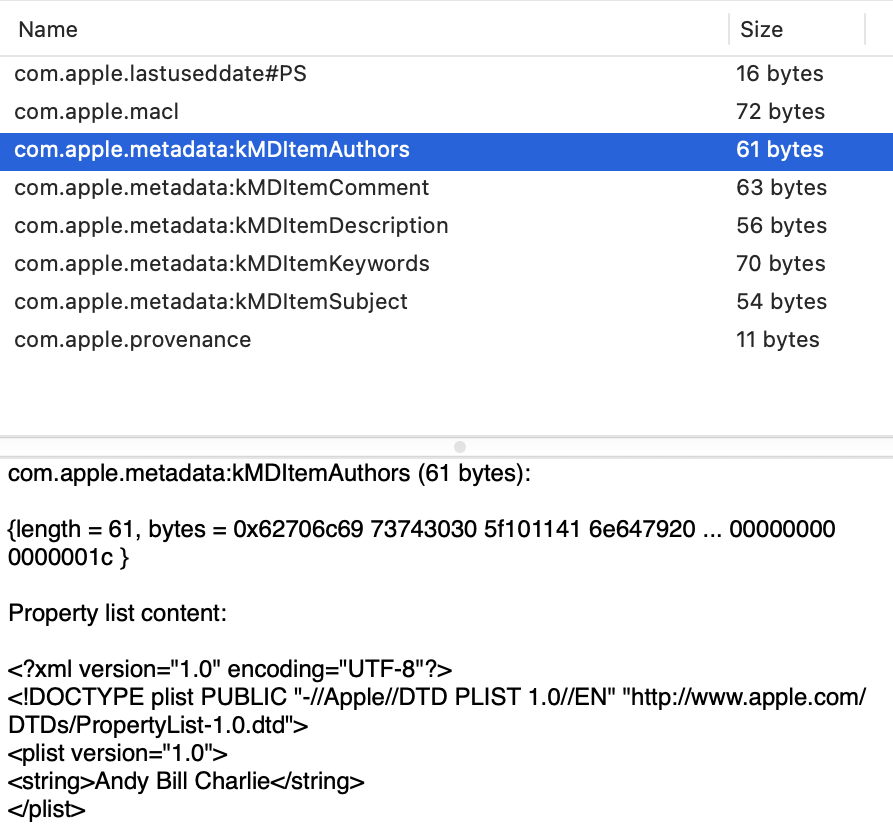
Mac OS X brought the extension of classic resource forks to other metadata objects, as extended attributes (xattr), named using a reverse-URL scheme, such as com.apple.FinderInfo containing metadata for the Finder. In this scheme, the traditional resource fork becomes a xattr of type com.apple.ResourceFork. Many of these are now used by macOS for security and privacy protection, but the user can add xattrs containing copyright information, names of creators, an arbitrary description, a text headline, and others. Anyone can define their own type of xattr, and some apps make good use of them for storing metadata.

Their main disadvantages are:

  • Xattrs rarely transfer to other platforms, making most Mac-only.
  • They’re commonly stripped when transferred even between Macs, or when shared in iCloud Drive. Apple has a system of tags to determine which xattrs should be stripped and which retained, but those aren’t as widely used as they deserve.
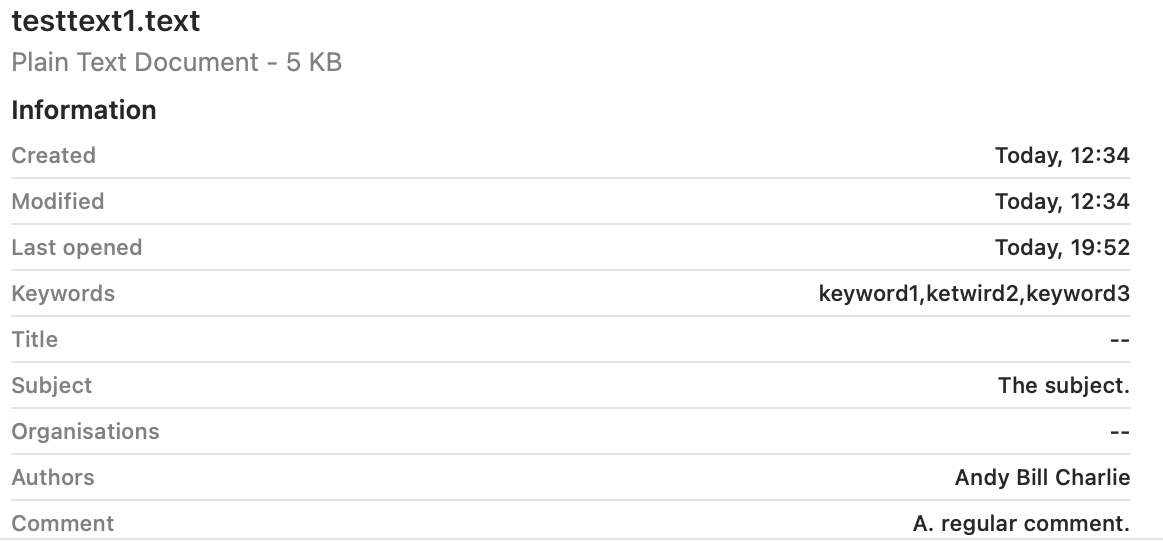
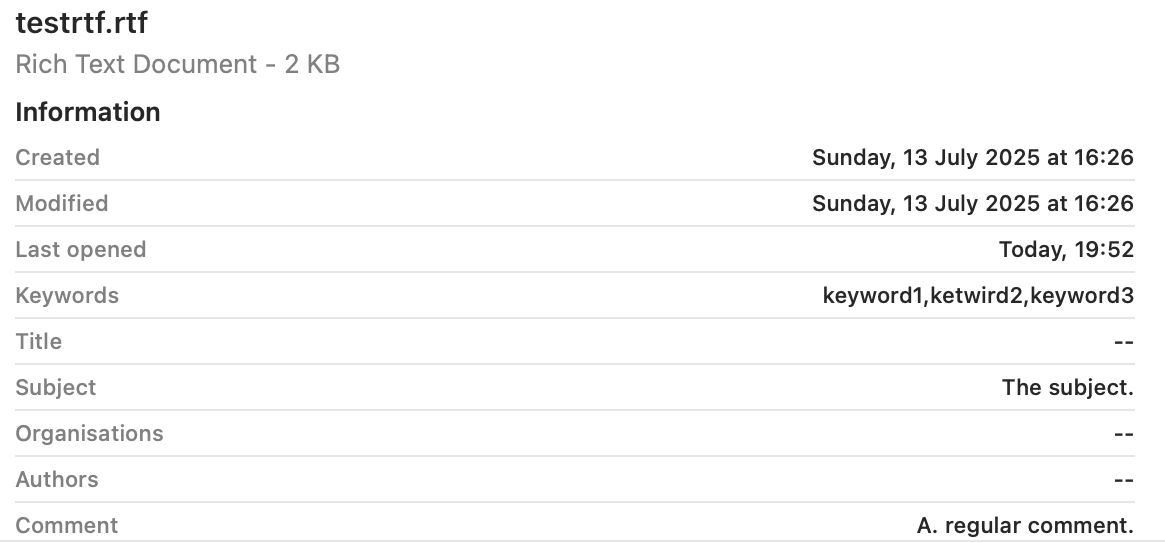
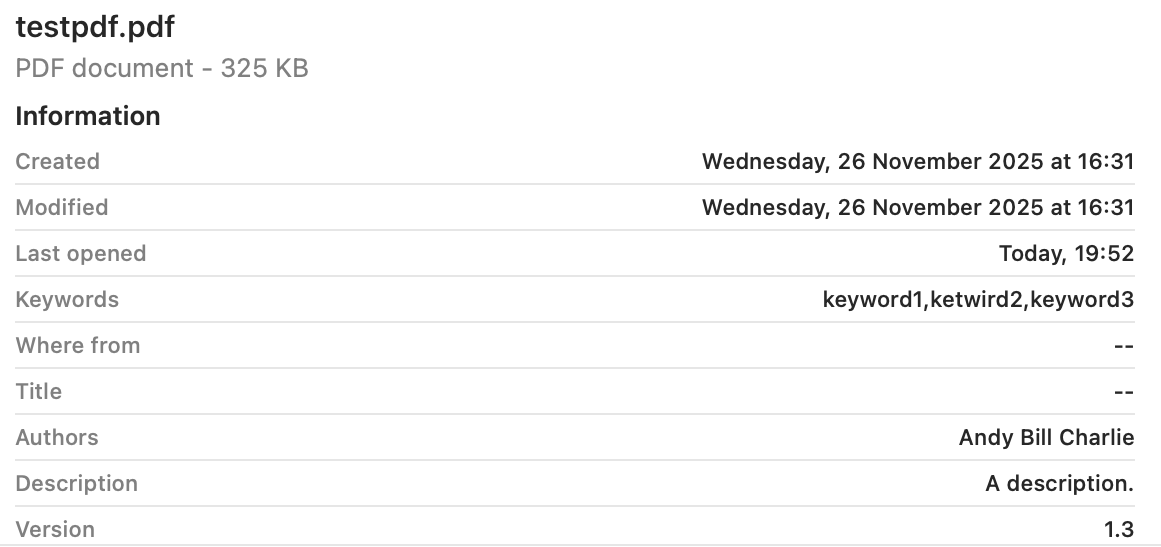
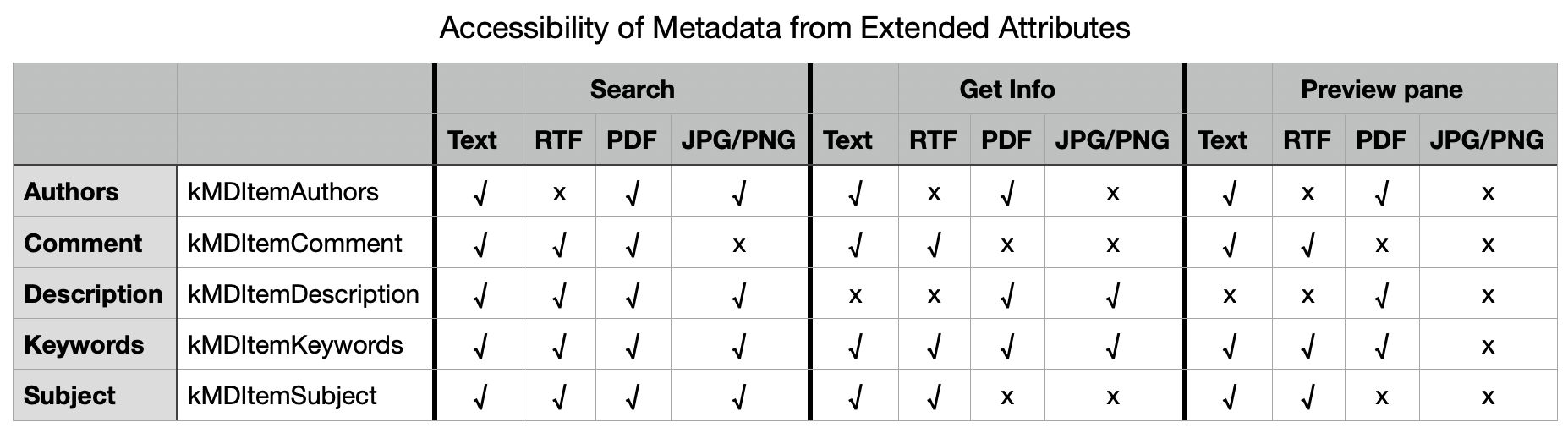
  • Most xattrs aren’t shown by the Finder, either in Preview panes or in Get Info dialogs.

For largely historical reasons, even Apple doesn’t take fullest advantage of xattrs. For example, Finder Comments, which are shown in Get Info, are primarily stored in a folder’s hidden .DS_Store file and only secondarily in a com.apple.metadata:kMDItemFinderComment xattr.

Embedded metadata

Because so few file systems use extended attributes or their equivalents, most file-specific metadata is now embedded in file data. For some file formats, such as those widely used by word processors and spreadsheets, this is relatively straightforward, particularly when using XML-based formats.

It becomes more complicated and less reliable when used with images, as in Exchangeable Image File Format, EXIF. Although usually treated as a metadata standard, in fact EXIF encompasses both data and metadata formats embedded in a single file for convenience.

EXIF metadata can include camera settings such as aperture and shutter speed, image metrics such as colourspace, date and time of creation, location and copyright information, and a thumbnail version of the image (which is arguably data rather than metadata). How the metadata is embedded with data is determined by the format of the image data. For JPEG data, EXIF metadata is stored in an Application Segment of the image, but for TIFF data there’s a sub-image file directory that can spread the metadata anywhere within the data.

The danger is that apps that edit data can inadvertently damage or remove the EXIF metadata, and that’s all too common among image editors that may need to rewrite the whole of the data when saving an edited image. Fortunately macOS relies on its own QuickLook thumbnails rather than embedded EXIF thumbnails, as some image editors don’t update the latter reliably.

There are more subtle disadvantages to embedding metadata with data. In Apple’s preferred model, there are separate datestamps in file attributes for saved changes to data and extended attributes, allowing them to be distinguished.

Summary

In macOS, metadata can be stored

  • in the file system as attributes,
  • as extended attributes,
  • embedded with the file data.

It’s hardly surprising how often it goes missing, or is overlooked.

❌
❌